Reading view

I tried Android's underrated desktop app, and it's transformed the way I work

For the longest time, I thought that, despite their annoyances, iPhones had something big over the best Android phones: PC connectivity. I'd always seen iPhone and Mac-owning friends quickly send files between the two, and assumed it was an Apple-exclusive feature.

As it turns out, this isn't true. Android users can use a Windows app that brings loads of really useful features — and it's really underutilized, which is why a tech journalist like me hadn't heard of it.

This software is called Phone Link, and we've got a guide on how to connect your Android phone to a Windows PC using Phone Link elsewhere on TechRadar. I downloaded it about a year ago, largely out of duty to test every tool, appliance, and gadget I could get my hands on. I was expecting it to last a weekend.

A year on, though, and Phone Link has become such a useful part of my workflow that I'd forgotten it's something not everyone's heard about. It's such a natural part of the way I use my phone and computer that I'd totally forgotten it was something I initially downloaded to test!

Well, no longer: TechRadar has let me wax lyrical about Phone Link, and I'm going to give the tool its time in the sun.

Sending photos from phone to PC
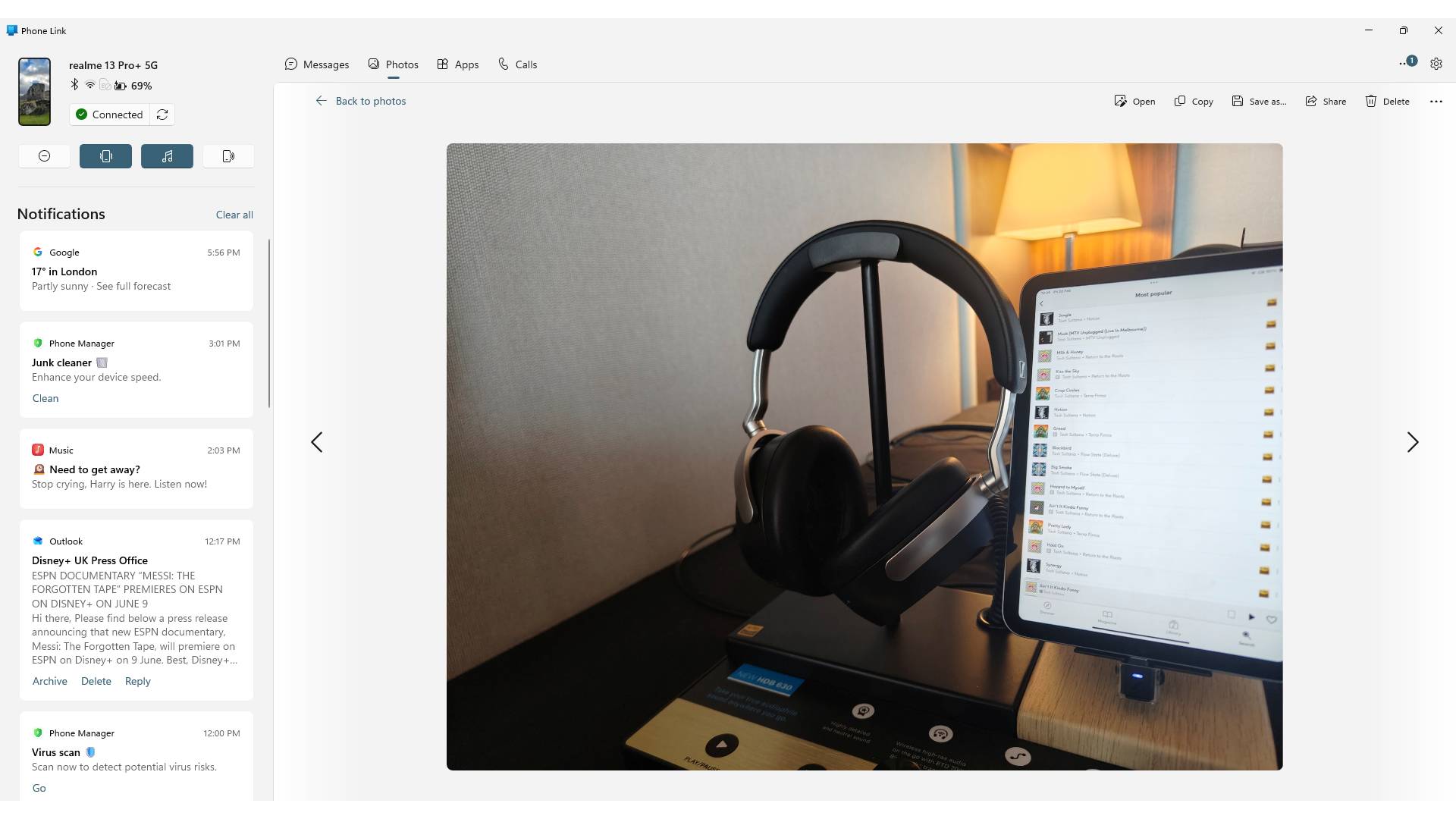
A screenshot of Phone Link on Windows, showing a photo of some headphones.

(Image credit: Future)

For the most part, whenever I want to connect my phone to my PC, it's to move pictures between the two devices.

As a smartphone journalist, you can understand that I'm sending snaps from my phone to my computer a lot. Sometimes it's camera samples from a mobile I'm testing that I want to upload for a review. Occasionally, I want to back up pictures I really like before I wipe a phone and send it back to the company.

The most frequent use case, though, is to transfer to my PC pictures I've taken on one phone, of another. I use smartphones to do review photography, and it's a great way to test out a phone I'm reviewing.

Before Phone Link, I'd have to use a USB cable to connect my phone to my computer — approving the connection on my Android's end, because they're always annoyingly suspicious — and drag and drop all the relevant pictures into a folder on my computer. It's not an especially onerous process — it's a lot quicker than when I used to use Google Drive to transfer pictures, for instance — but it takes a little while of fiddling with my phone and digging out a cable to work.

Not so with Phone Link. Its Photos tab shows a big old list of all the pictures you've taken recently, giving you options to save them to your PC, open them in an editing app, and share them with others.

These pictures appear as soon as you take them, as long as your phone is on the same Wi-Fi as your computer. I've become used to taking photos in one room of my home, and entering my office, to see them linked up on Phone Link, ready for an edit. When I've got PC notifications turned on, I can even hear the 'bong' of my computer telling me they've arrived.

Phone Link also lets you browse the contents of your mobile in the Files tab, where it appears in the Devices and drives list alongside any cloud or local drives you have. I don't use my phone to handle non-photo files, but it's a nice touch that'd be really useful if I were in another line of work.

Apps on my PC
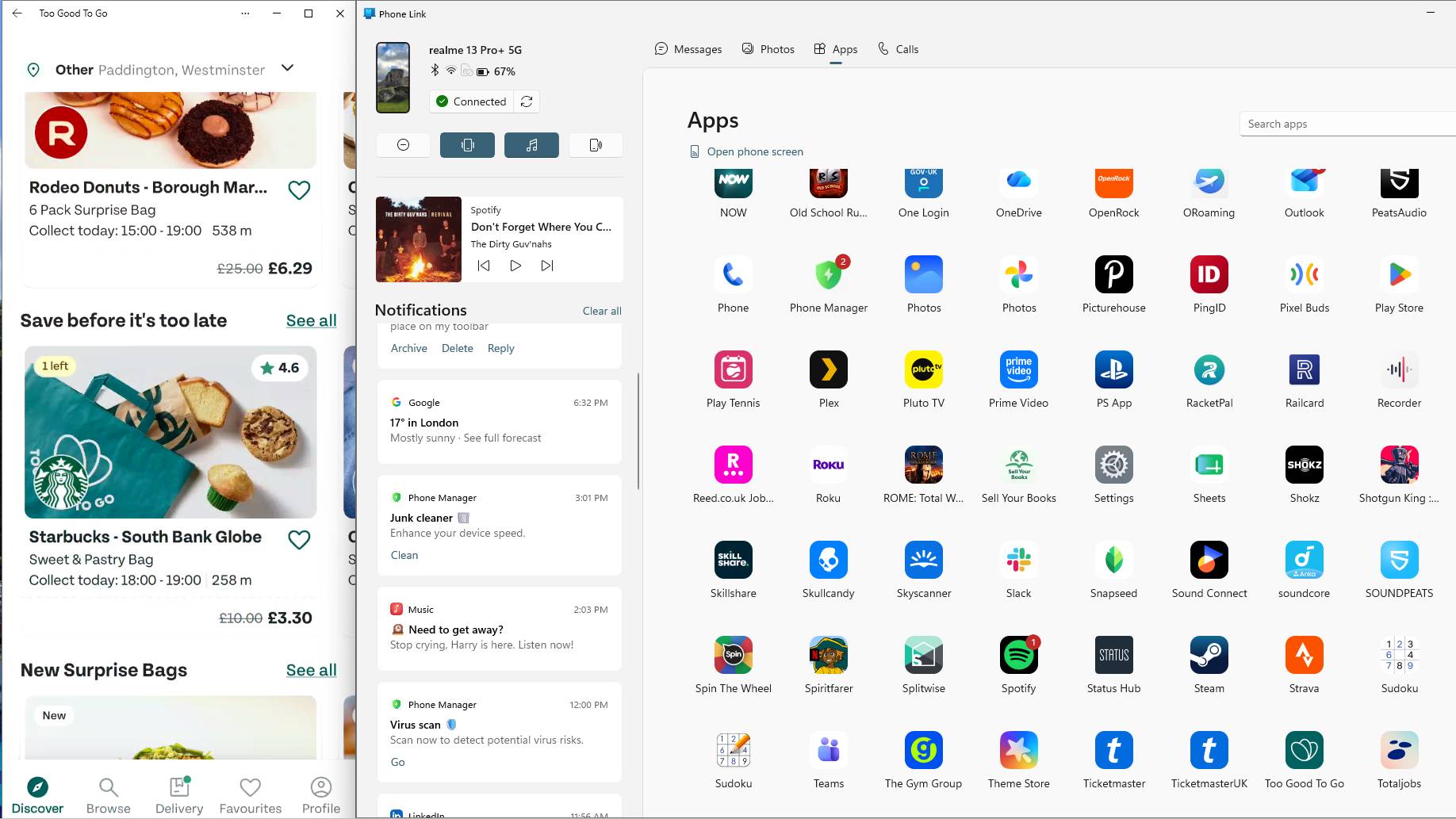
The Windows Phone Link Apps menu on the right, and on the left the window for Too Good To Go.

(Image credit: Future)

Ostensibly, one of the main uses for Phone Link is that it lets you open your smartphone apps on your computer. Its Apps page shows you a massive list of every one you have installed on your mobile, and clicking on it opens it in a window.

This doesn't override anything you have going on on your phone; if you're using it as a second screen to watch a YouTube video or act as a music player (one of many ways you can repurpose an old Android phone), the app will open in your PC window alone.

When I first started Phone Link, I tried using it for everything, but often bounced straight off. In many circumstances, using a smartphone is simply more intuitive than using a mouse and keyboard, given that phone apps are designed for thumbs. But over time, I've found a few uses of Phone Link's app windows that are genuinely handy.

As mentioned, one of those uses is as a music player. I can let Spotify hang around as a spare window, ready to skip tracks or change playlists when I want. It's also useful as a way to check apps that don't have PC equivalents, like Too Good To Go or Mubi Go, or ones that do have web functions but are easier on the phone, like my national health service's app.

There's one way that Phone Link saved me hours, though. When I used to work for a company that didn't let you use your work Gmail account on personal computers, Phone Link was my workaround to still see emails on my PC. This saved me ages each day; time that'd otherwise be taken up checking and replying to emails on my phone, or trying to get my decrepit work laptop to turn on.

Naturally, you can manage your calls and texts via Phone Link too. Personally, I don't think I've sent an SMS or made a non-WhatsApp voice call since the 2010s, but I'm sure there are some people who'd find this handy.

I also appreciate a notification list down the left side of Phone Link. This transforms it from being software solely for controlling your mobile to a veritable hub of information from your handset. I'll often keep it up on my second monitor; it makes good use of its space.

Controlling my phone from my computer
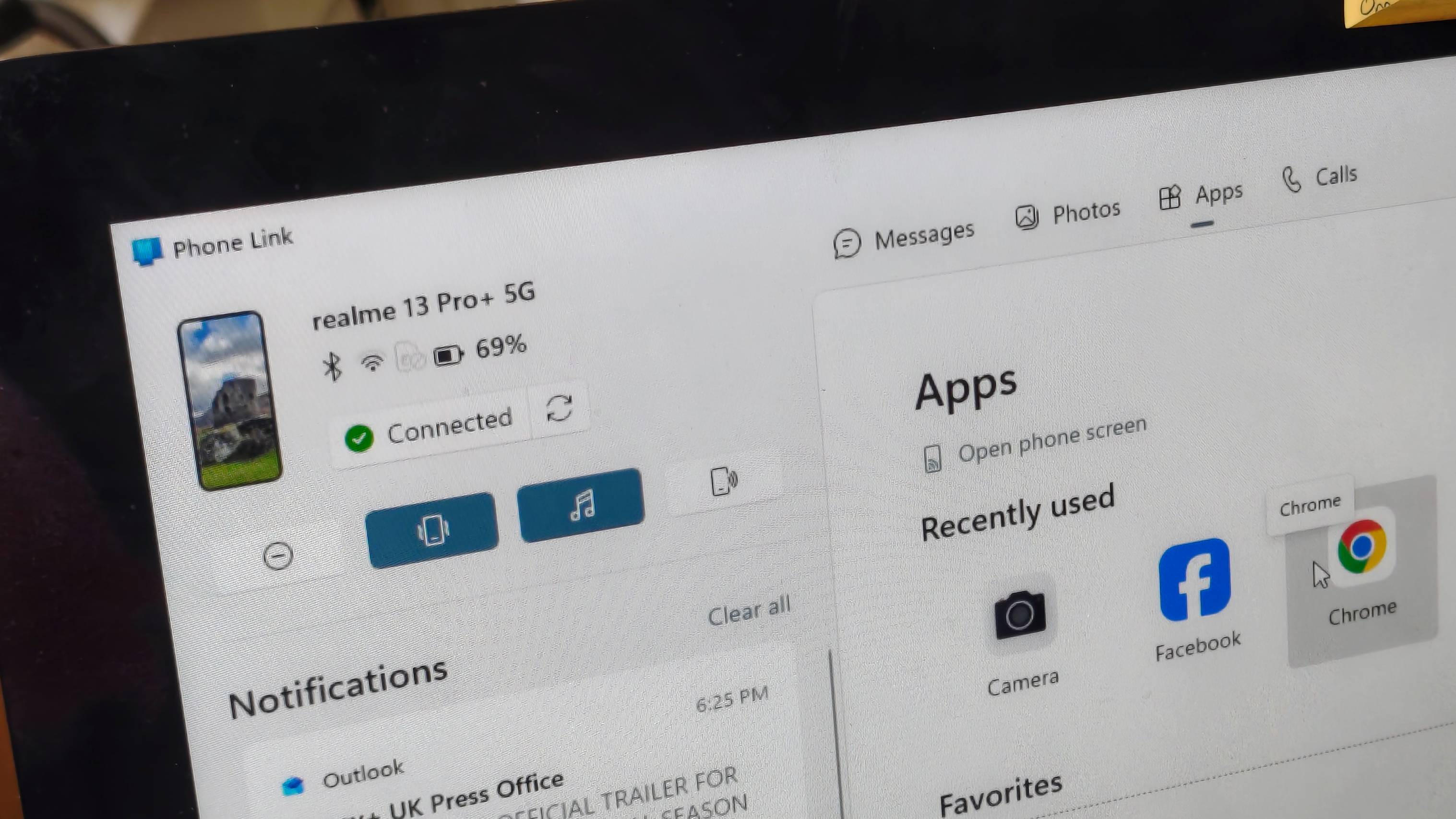
A snippet from the Windows Phone Link app, showing phone controls.

(Image credit: Future)

As mentioned, you can use your computer to control your mobile's apps via Phone Link, but you can also use it to change the actual settings of the device itself, which proves itself useful in an entirely different way.

Phone Link lets you monitor your phone status; I can see how it's connected to other devices, what battery it's on, and whether it's currently paired with Phone Link or not. I can even see a little representation of what my wallpaper currently is. All useful to a small degree, but the charge is the only one of those that's seriously useful.

What's more important are the status controls. You can toggle between vibrate, sound, and silent, turn Do Not Disturb on and off, and turn on the media player.

From a cursory mention of the tools, these might not sound that important, but I've found them really useful in a pinch. I'm constantly forgetting to mute my phone before I go on a video meeting, and a quick click of the Do Not Disturb button means I'm not going to have unexpected calls.

As a lazy person, I also love the fact that you can use Phone Link to play a sound from your phone; I'm always doing this instead of spending five seconds actually looking.

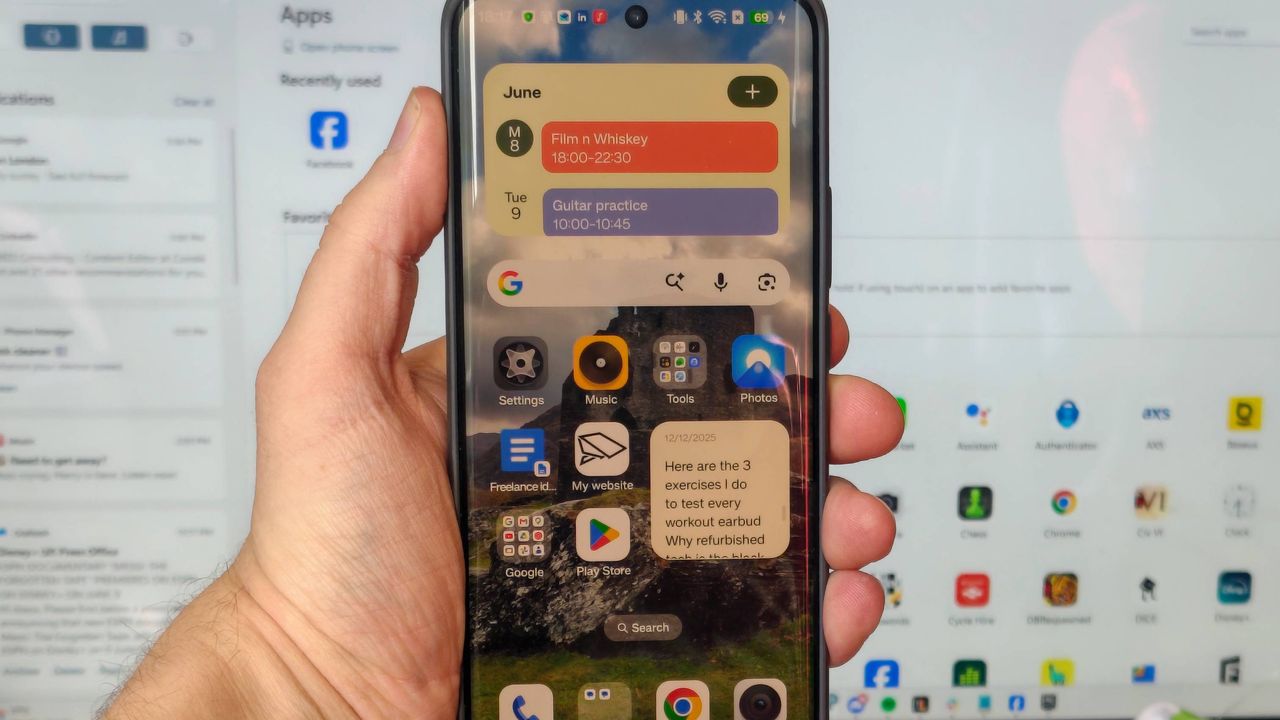
My one gripe with Phone Link is that I still need my phone with me to use it. When you start using it each session, you're required to unlock your device and approve the connection. But this is a small price to pay for the transformational effect it's had on my workflow — and I hope that you, too, consider giving it a try.
New Windows 11 update is a big one — these are my top 4 features, including the ability to pause updates indefinitely

  • Windows 11's July update has arrived
  • It packs some smart features, including pausing updates at length and a new recovery option
  • This patch also cures a nasty bug that slowly eats more and more drive space, but there's an issue to be aware of for Dell laptop owners

Microsoft has released its monthly patch for Windows 11 and the July update is a biggie, packing a feature that I've been awaiting for quite some time.

That would be the ability to pause updates on Windows 11 Home – beyond just a short period of time, which has been the only choice to date – and there are some other impressive additions from Microsoft here.

I'm going to pick out my top four features introduced by the July update, as well as rounding up some of the other more notable changes here. I'll also highlight an important bug fix that has been deployed for a nasty flaw that eats your drive space – along with a warning for some of those with a Dell laptop (who may not get this update for a good reason, as you'll see).

As ever, these changes were seen in the last optional update (June preview), and most of these features are being rolled out gradually, so you may not see them right away after installing this update (indeed, you may have to wait a while based on how the update winds blow regarding your exact PC configuration).

1. Pausing updates

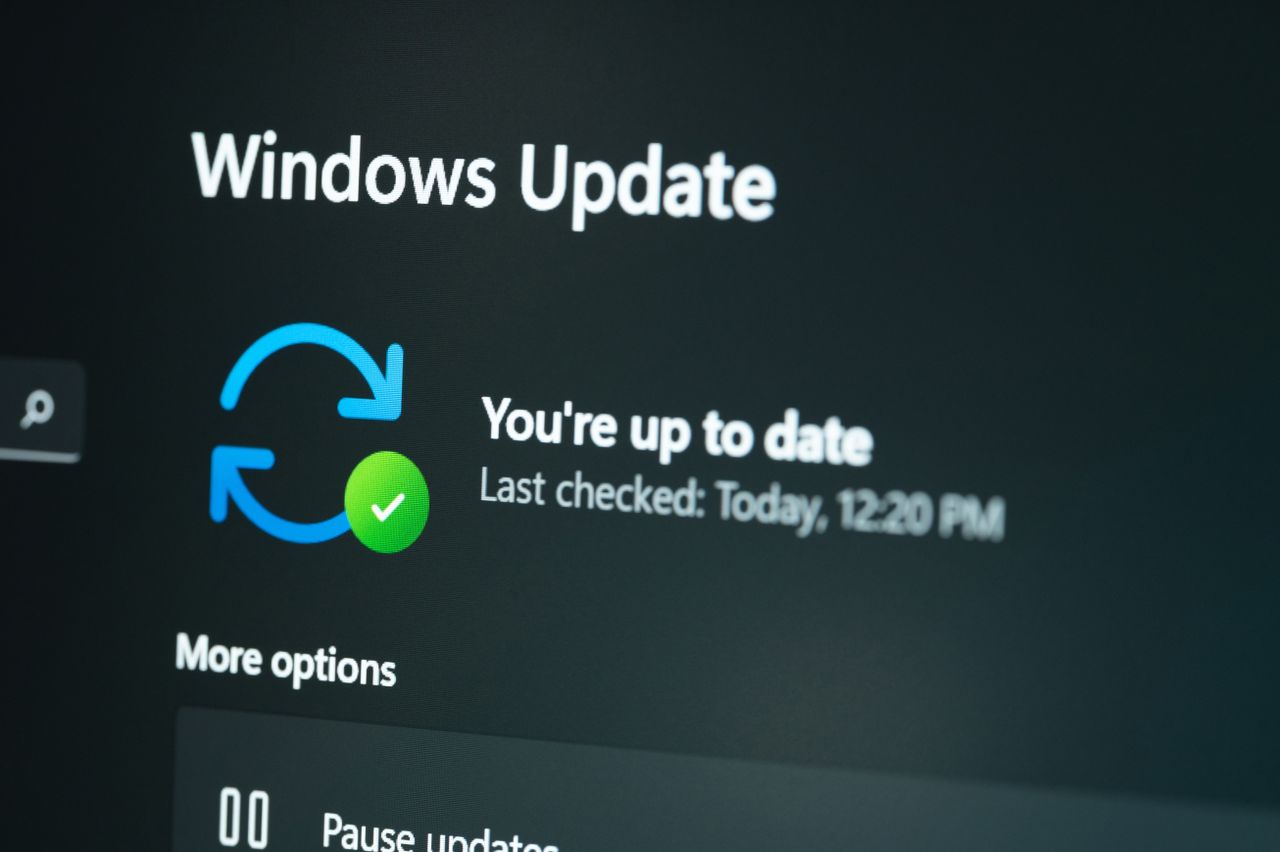
Checking windows update on laptop screen close up view

(Image credit: Shutterstock)

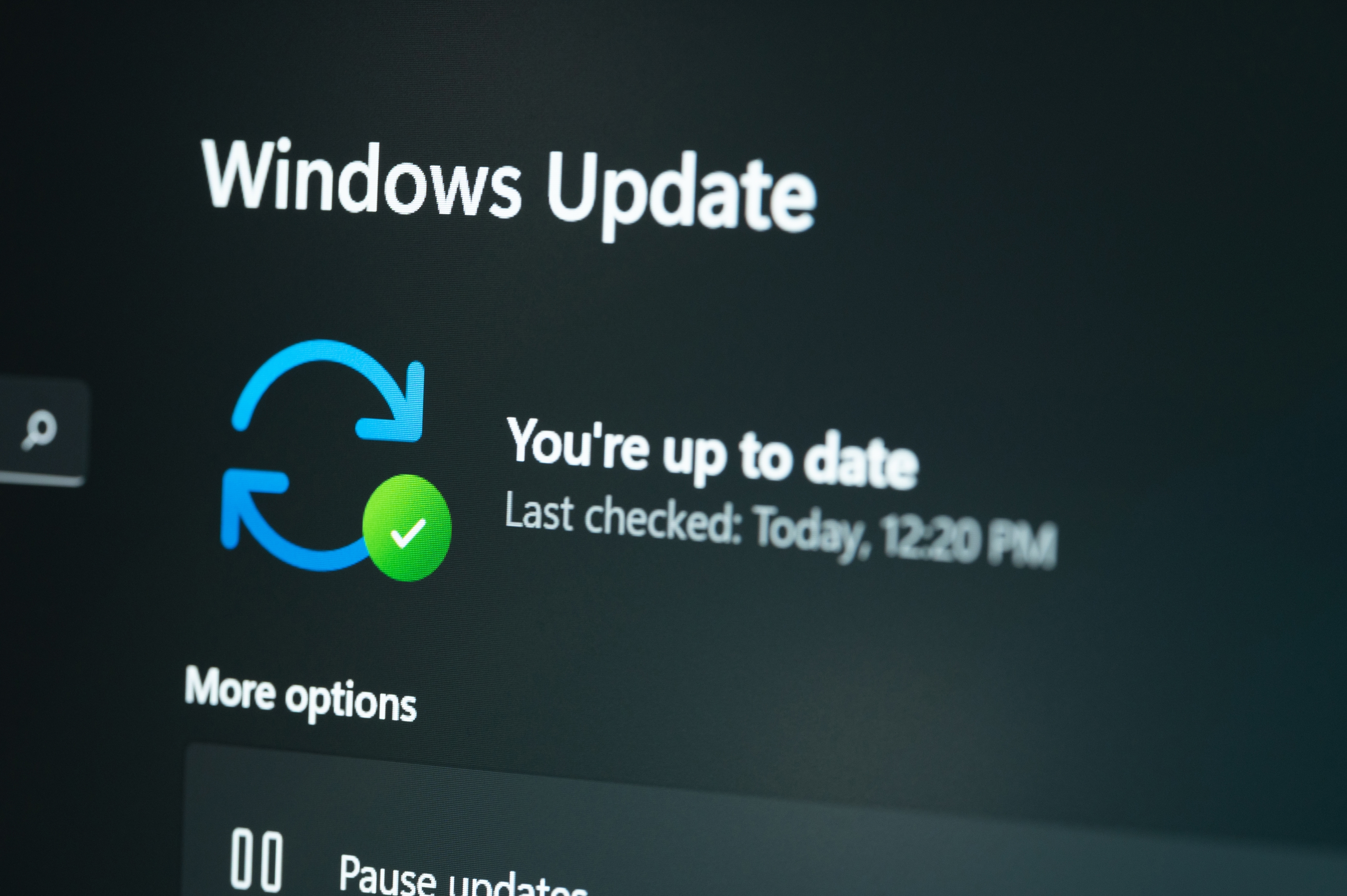
Sometimes you want to hold off installing an update because of a bug that you're nervous about potentially affecting your system, and up until now, Windows 11 users have only been able to avoid any given update for five weeks.

Okay, so that's a fairly long time, but what if the bug is one of those persistent and niggly affairs that Microsoft takes an age to fix? You may want to delay the update beyond five weeks, and now you can. The catch is that you'll need to continually renew the delay for every 35-day period, but nonetheless, you can now keep an update at bay for as long as you want. (Well – until you're forced to update to a new version of Windows 11, that is, when support runs out for your current version).

2. Point-in-time restore

A young woman is working on a laptop in a relaxed office space.

(Image credit: Getty Images)

Another neat addition is point-in-time restore, a new recovery option that you can employ when something bad happens to your PC and you can no longer reach the desktop. Point-in-time restore lets you roll back a non-functioning system to a previous working state. It reverts to the "full system state" meaning that all your apps, files, and settings are recovered as captured at that previous time.

Hopefully this is a feature that you'll never need, but if you do, you'll be very glad of it. Note that the system backups obviously take up drive space, with older backups automatically deleted after 72 hours by default. Also, if you have a system drive that's smaller than 200GB, you'll have to enable this feature yourself (as it won't be turned on automatically due to potential space issues – note that you can specify a maximum amount of storage space used).

3. Fewer annoyances with widgets

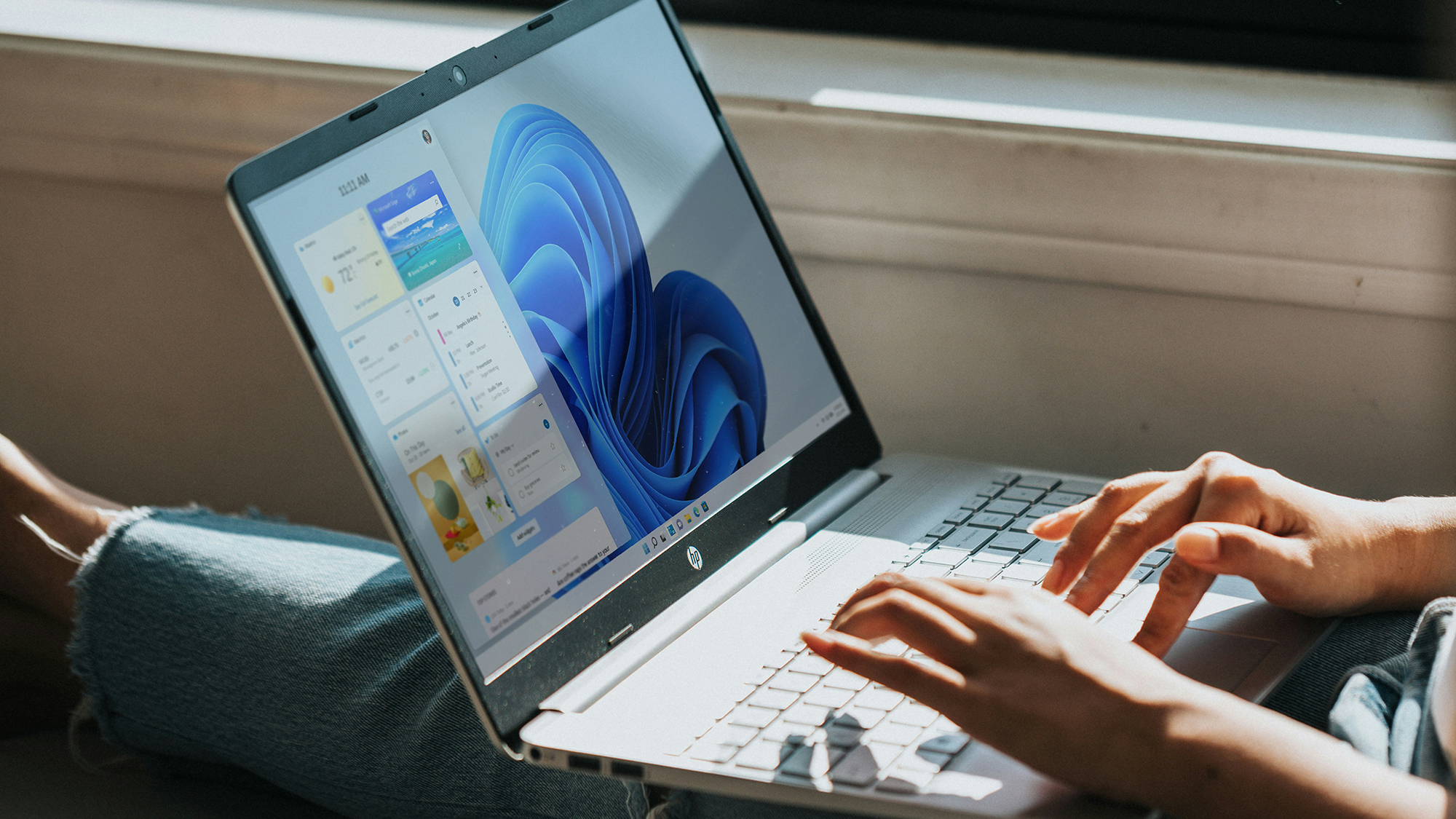
Windows 11 on a laptop

(Image credit: Windows/Unsplash)

The July update is making the widgets panel 'quieter' by which Microsoft means that it has cut out a lot of clutter. The main change is that by default the panel just displays your widgets and Microsoft has got rid of the promotional nonsense in terms of ads and the MSN feed. Notifications and taskbar badges are also minimized by default, and widgets no longer open when you hover over them.

There are some other streamlining moves here, and even if you don't use widgets, I think this is a noteworthy change as it shows the direction Microsoft is now heading in with Windows 11 – chilling out on the upselling as was previously promised (if not entirely banishing it).

4. Screen tint

A laptop with the Windows 11 desktop on screen, glowing, while on a work desk

(Image credit: Shutterstock/Ham patipak)

Windows 11 has been graced with a number of accessibility improvements in the July update, first of which is a new screen tint ability. This does what it says on the tin, allowing you to tint the screen with a choice of colors to help reduce eye strain, or to make text more easily readable. You can adjust the tint intensity, and this is a very useful addition that'll save people from downloading a third-party app to get these kinds of color overlays.

Other features in the July update

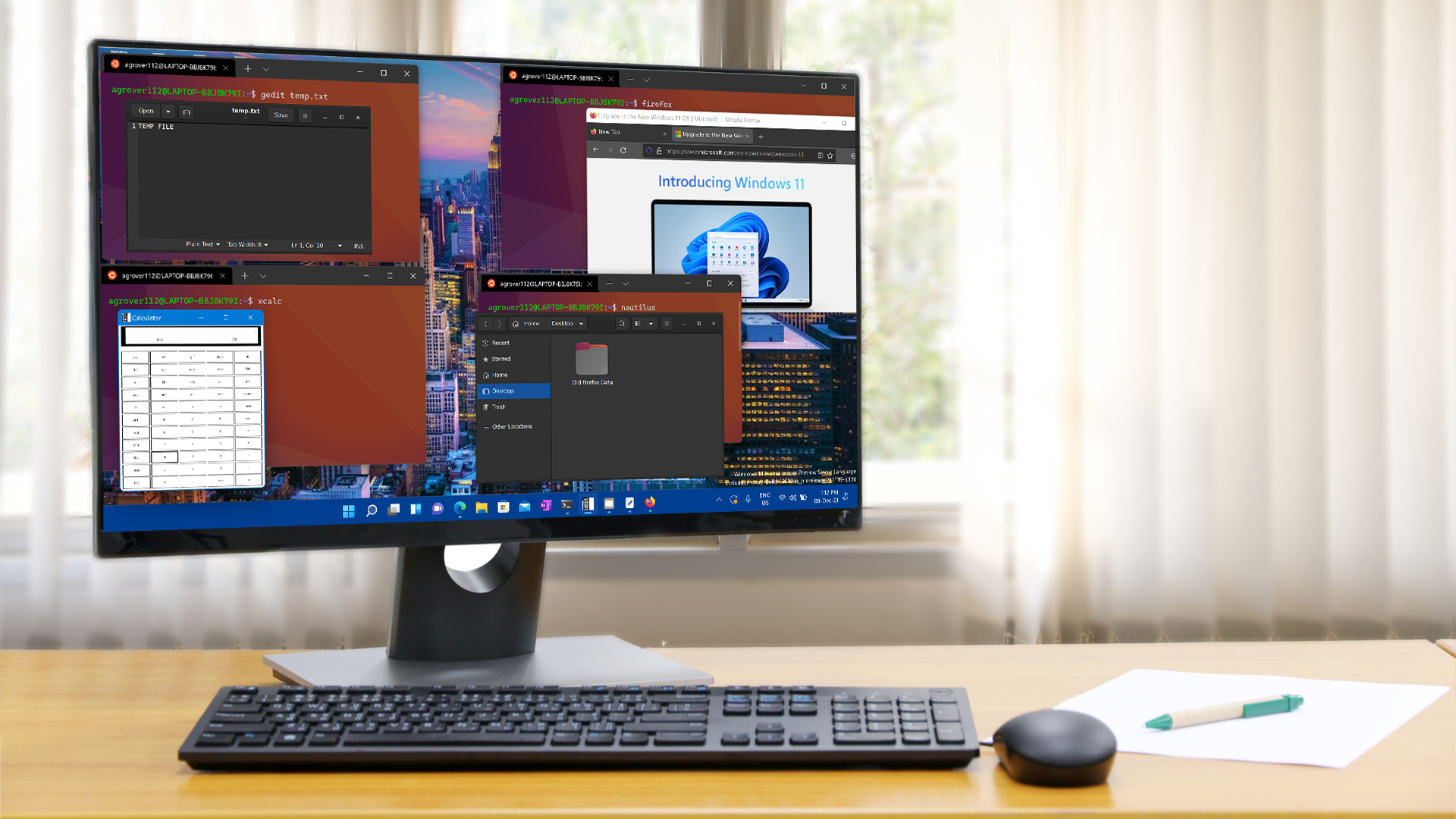
Windows 11 Linux app

(Image credit: TechRadar)

There's quite a lot going on here aside from the above major moves, and that includes Microsoft boosting the speed at which File Explorer launches (helping Windows 11 to feel more performant overall).

There's a whole lot of work on the Bluetooth front, too, as Microsoft notes: "This update improves reliability and performance when connecting to and using Bluetooth devices." That includes better driver stability, improved audio routing for calls via Phone Link, and more.

File Explorer has also been honed to be more reliable, and Microsoft has implemented a performance tweak to the Background Intelligent Transfer Service (BITS) that means PCs will shut down more promptly. If you've ever sat staring at your computer while it takes 20 seconds to shut down, wondering what on earth it's doing, that kind of behavior will hopefully be a rarer occurrence going forward.

A major bug fix – and Dell laptop problems

There's some good news for those of you who have been suffering at the hands of a mysterious bug that eats storage space (due to an out-of-control database file). This is fixed with the July update (the cure was in the June preview before it), so you can grab this to resolve the issue (hopefully).

There's some bad news on the bug front, though, namely that you won't get this update on some Dell devices with Intel CPUs, as Microsoft has blocked it due to the July patch causing all sorts of weird issues. I say it's bad news, but at least Microsoft caught the problem and has prevented the update from being piped to those machines.

Microsoft informs us: "This update might not be available for a limited number of Dell devices with Intel processors due to an incompatibility reported by Dell that can potentially cause unexpected shutdowns, poor performance, increased heat, and battery drain. We are working together with Dell to prevent the affected models from experiencing the issue and plan to release a resolution for affected devices in the coming days."

So, if you were wondering why you couldn't get this patch on your Dell laptop, now you know. You'll just have to sit tight for now until Microsoft and Dell get this ironed out.

'We love this... except gradual rollouts': Windows 11 search is being improved in a big way, with users impatient to get these changes — and I don't blame them

  • Microsoft is improving Windows 11 search in multiple ways
  • That includes a calmer search panel, the ability to turn off web results, a better way of prioritizing returned results, and a more stable search overall
  • This is in testing for now, and the main worry is how long it might take for Microsoft to usher all this through to release

If you're fed up with the way Windows 11's search functionality works – and you wouldn't be alone – some incoming changes are set to greatly improve this experience.

Microsoft revealed the tweaks to the search box in a blog post, explaining that they're being delivered via a gradual rollout to testers in the Experimental channel for Windows 11 preview builds.

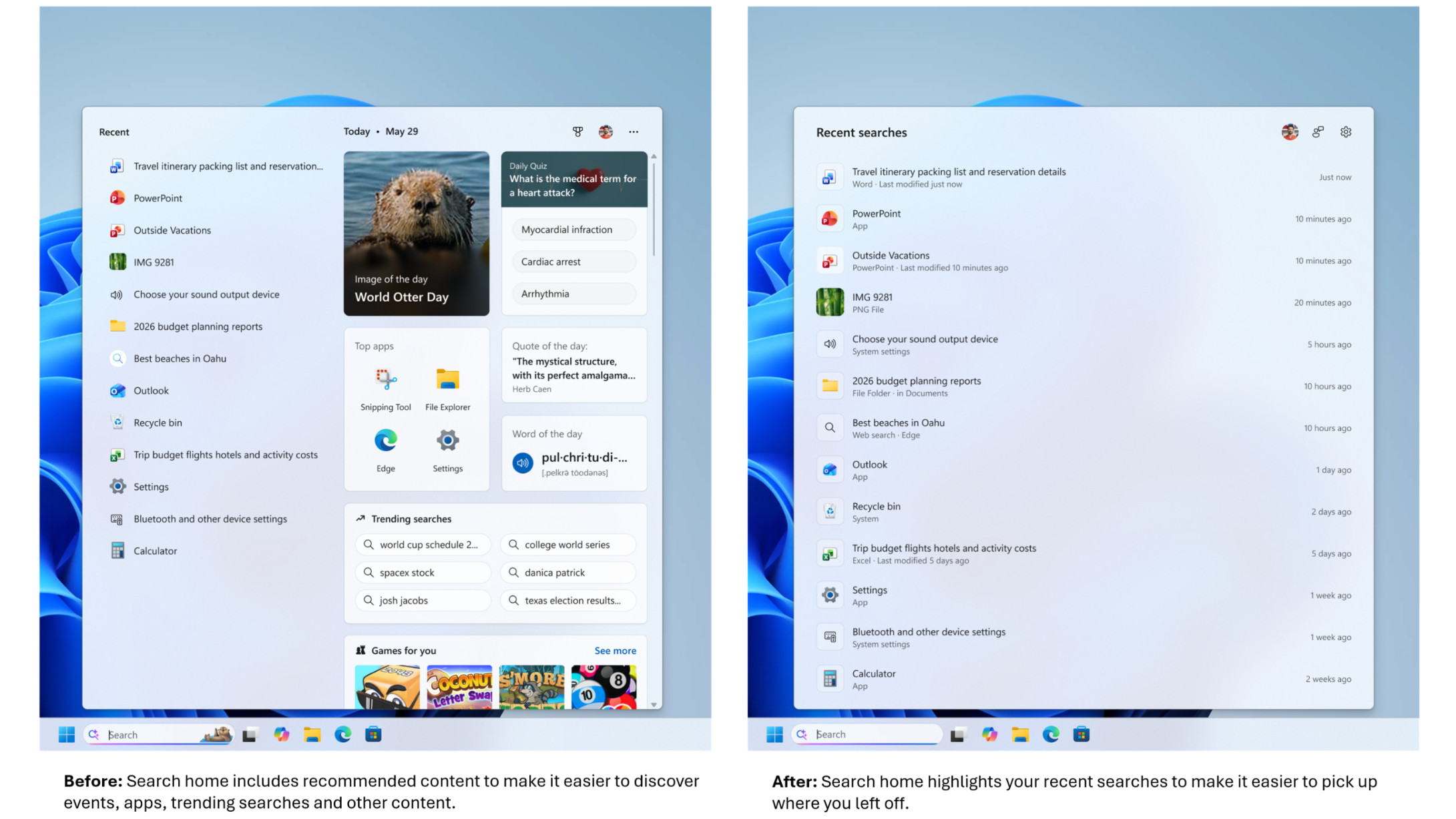
The first major change is simply to make search a calmer place, so when the panel appears, it only contains a list of your recent searches (allowing you to easily fire up one of those again if you wish). The current clutter to the right of that list, including recommendations – some of which are outright adverts – along with trending searches has all been banished.

And the second important piece of work here is that Microsoft is finally giving Windows 11 users the ability to get rid of web results in search. Currently, when searching for a file in the operating system you get not just local results (for files on your drives), but also some web results which can get in the way.

In this new scheme of things, you'll be able to switch off all web results in Settings, and also ditch Microsoft Store suggestions too.

If you keep these results on, Microsoft notes that they won't be prioritized, although this is something the company had already started to address (it used to be the case that web content could appear at the top of the returned results in a truly baffling fashion). Web results have also been stripped of any 'promotional content' so you'll only get the most relevant answers if these results are enabled.

Microsoft has also bolstered the handling of results for Windows 11 settings so that more relevant options are flagged up higher in the pecking order, and Microsoft says further fine-tuning is planned on this front.

The search box will also be able to handle typos, with an improved ability to guess what you really meant ('Chrome' rather than 'Chome' for example), and it'll start to surface possible results after typing just two characters (another enhancement we've already heard about).

While this is mostly all about streamlining, Microsoft is going the other way in one notable respect — adding a bit more detail in for the files returned in the results. Search will now provide more info about files (such as when they were last opened) and a more in-depth preview in the right-hand panel, so you can more readily tell what you'll be opening if you click on that result.

Finally, Microsoft is making search more reliable, which involves "reducing [the] likelihood of crashing and loading issues" which is obviously a welcome move.

Analysis: the rollout fly in the soothing search ointment

Screenshot of Windows 11 search revamp in 2026 showing old results versus new more streamlined panel

(Image credit: Microsoft)

Windows 11 search has always been a somewhat painful affair for me, thanks mainly to the clutter of the thinly veiled (or not even veiled at all) ads, and the irrelevant results which were surfaced with a baffling level of priority, as noted. Windows 10 isn't a lot better, frankly, but at any rate, I'm very happy to see the fresh direction Microsoft has taken here.

The calmer search results are a major boon, with Microsoft following in the same vein as the streamlining it recently announced for the widgets panel, which was made a quieter place. (All this follows a broader early promise to rein in the upselling with Windows 11 and generally make the interface a more chilled place).

I was hoping that the option to turn off web results would be brought in, and this is the most important addition for me personally. I'm not alone, and the reaction to these various changes has been very positive, with the only real sticking point being impatience around when these new features will be rolled out. That's both in terms of testers wanting to try the revamped search box now, and the general computing public wondering when they will eventually get their hands on all this.

As this tester posts on Reddit: "We love this... except gradual rollouts. We don't like when things are inconsistent from PC to PC despite running identical [test] builds [of Windows 11]. It's really obnoxious and breaks muscle memory. But the changes seem great and I look forward to trying them."

As Microsoft points out in its blog post, it's worth remembering that there are now feature flags that can be enabled if you're really keen to try out something in a preview build, and it's not on your PC yet.

However, as for those asking: 'For those of us on release, when might this arrive?'

Well, that's a very different kettle of fish, as it could take quite some time for this work to progress through testing. Mainly because there are a lot of changes involved, and it's not something Microsoft will want to rush (especially given the drive to make search more reliable and stable).

And when these search improvements are eventually released outside of testing, it'll be on a controlled rollout that you won't be able to jump the queue with. However, there's a reason for that – Microsoft will need to observe the changes going live in a gradual manner to ensure no unexpected gremlins are crawling around in the works.

So, you will have to be patient, and there's some frustration around the length of time it can take for controlled rollouts to proceed these days (the Start menu overhaul from last year being a key example here – some folks still don't have it even now). But the good news is that these changes are coming, and they promise to revamp search in Windows 11 to a considerable extent. I can't wait (but I'll have to).

Is this the ultimate 'back to school' laptop? Students can get a brand new 2026 Dell XPS 13 for just $599

I'm always keeping my eye out this time of year for the ultimate 'back to school' laptop deals for our readers. Today, I think I've spotted a listing that could actually lay claim to that title.

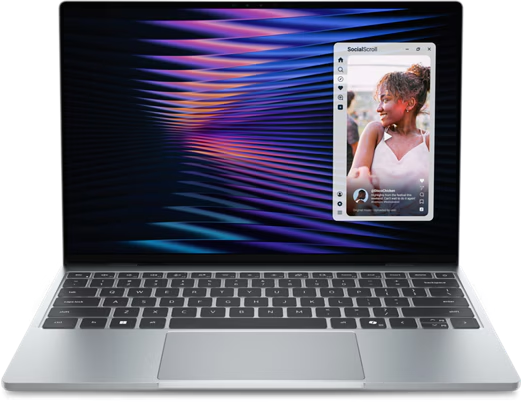
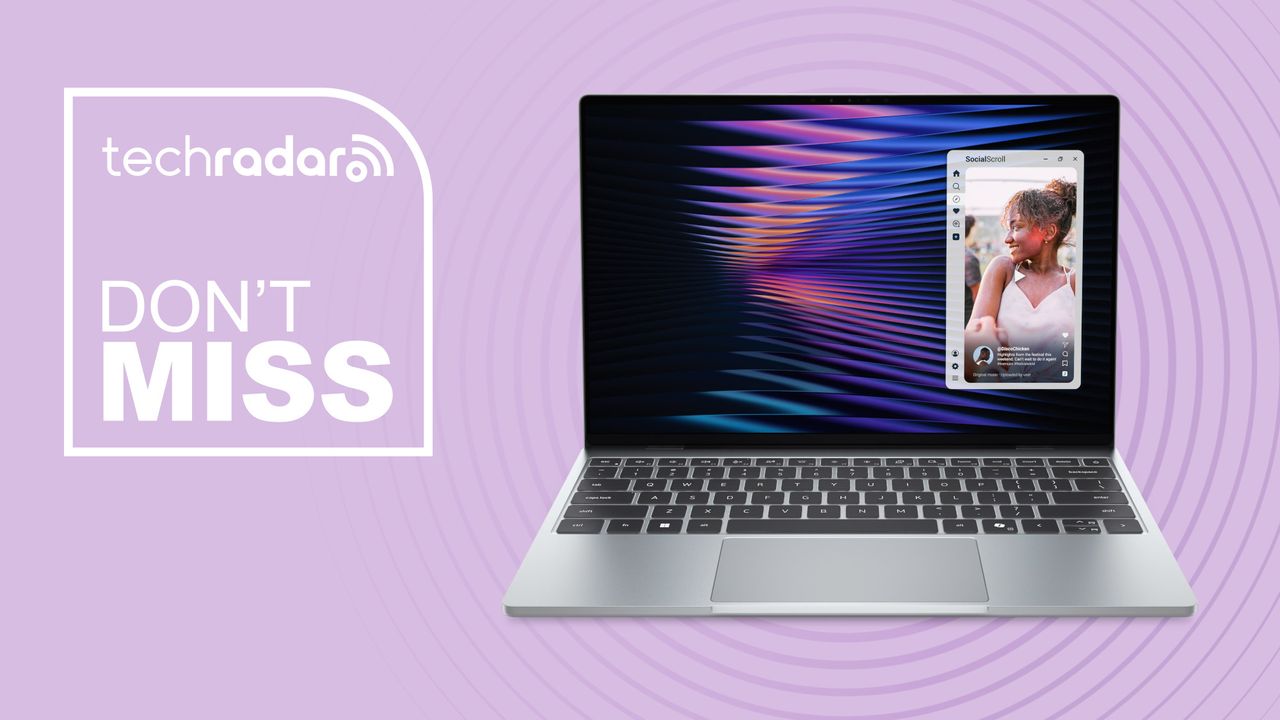
It's the brand new Dell XPS 13, which is currently on sale for just $599 if you're a student. This new model has just been released at $699, but it looks like Dell is doing a particularly aggressive intro deal for prospective students right now.

To be honest, even at $699, I'd say this Dell XPS 13 is a strong contender. We haven't reviewed it yet here at TechRadar, but this iteration looks like a very compelling alternative to the likes of the new MacBook Neo, which is also $699.

It's surely no coincidence that the new XPS 13 is priced to compete with the MacBook Neo, as both offer a premium, lightweight laptop at a rock bottom price. The XPS 13 is obviously a Windows 11 machine, however, so it's the one to go for if you prefer Windows over MacOS.

Get the new Dell XPS 13 for just $599 today

Processor: Intel Core 5-320 
RAM: 8GB
Storage: 512GB

In a time where laptop prices are spiralling out of control, Dell's latest XPS 13 looks like a rare deal on a premium model. OK, so this is the baseline model with only 8GB of RAM, but the XPS 13 is a great laptop with a fantastic 120Hz display and excellent build quality. Considering that Dell are also offering students an impressive $100 discount at launch, this XPS 13 looks like a very competitive alternative to the likes of the MacBook Neo.View Deal

While we haven't reviewed this model yet, our sister-site Windows Central managed to check it out in-person earlier this year. Initial reports are exceedingly positive, with the price, display, and overall build quality being particular highlights.

Interestingly, Dell had MacBook Neos on display next to the New XPS 13, so journalists could directly compare the to models. According to Windows Central, the XPS 13 had better build quality, a better display, and it was lighter. Of course, they do love Windows laptops over on that site, so your preference may vary.

We still rate the MacBook Neo here at TechRadar with its eye-catching colors and incredible battery life.

With that said, if I were choosing between the two, I'd definitely be tempted by the XPS 13. Generally, I prefer Windows laptops, and the XPS 13's Thunderbolt 4 ports are more useful to me than the Neo's standard USB-C ports. I'm also partial to the XPS 13's display, which I think it is a little more modern-looking than the Neo's, with its thick-bezels.

Watch out Windows users, a Secure Boot update has been blocked on Windows 11 PCs due to failing on some devices — here's how to check if you're affected

  • Microsoft has blocked Secure Boot updates on some devices
  • There have been issues with some devices updating from the 2011 certificate to the latest 2023 certificate
  • Some older devices or those not supported by their OEM may be restricted in downloading the latest Secure Boot certificates

Microsoft has blocked some Windows 11 PCs from installing Secure Boot updates due to known issues with certificate updates.

The company is currently rolling out an update for Secure Boot on devices using certificates issued in 2011, which are now expired. The new 2023 certificate is being applied through Windows Update, but issues on devices with faulty firmware have forced Microsoft to halt the rollout.

“Devices in this group are affected by a known issue. To reduce risk, Secure Boot certificate updates are temporarily paused while Microsoft and partners work toward a supported resolution,” Microsoft said.

Secure Boot issues

Secure Boot has long been a device-saving feature when it comes to removing malicious files, as it allows the device to verify and load only authentic software before booting to Windows. However if the device cannot receive certificate updates it can fall victim to threats at the boot-level before Windows is loaded.

Microsoft is currently working with manufacturers to issue a patch that will allow affected devices to install the new Secure Boot 2023 certificate, with HP issuing a BIOS update to allow the installation of the latest certificate.

What this means in practice is that some older devices, or devices that no longer receive updates via their Original Equipment Manufacturer (OEM), will not be able to apply Secure Boot and Boot Manager protections. Microsoft clarified that, “this results in a gradual reduction in long-term security—not an immediate risk or system failure. Continue to follow standard security practices, including staying current with Windows updates.”

So even if your device is blocked from installing the latest Secure Boot certificate, it will continue to work properly, other Windows updates will continue to work, and your Secure Boot version will continue to protect against known vulnerabilities. It’s just future vulnerabilities that users affected by this issue will need to be aware of.

Many users may not be aware of issues until they need to use Secure Boot, so the silver lining in Microsoft’s warning is that now is the perfect time to check if your Secure Boot is working properly.

How to check Secure Boot is up to date

To check if you are using the latest Secure Boot certificate, take the following steps:

  • Open the Windows Security app using the search bar
  • Navigate to the Device Security dashboard using the menu on the right hand side
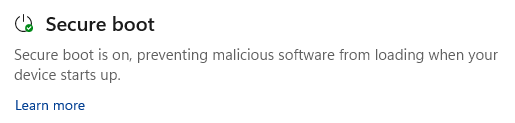
  • Look at the Secure Boot section, and check for the following messages:

The Windows Secure boot section on the Device Security dashboard, showing that Secure Boot is working properly.

(Image credit: Microsoft)
  1. "Secure Boot is on"

If you see this message, Secure Boot is likely working properly. However, this does not display your certificates’ current state. Microsoft has been rolling out an update to show if your Secure Boot is running on the latest certificate, so make sure your don't have any pending Windows updates.

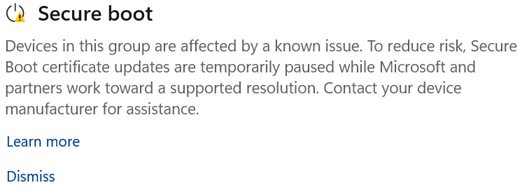
The Windows Secure boot section on the Device Security dashboard, showing that Secure Boot is affected by a known issue but can be updated by the OEM.

(Image credit: Microsoft)
  1. “Devices in this group are affected by a known issue.”

Devices with this message will likely be able to install the latest certificates once a firmware update has been issued by your OEM. Check your OEM update channel for availability.

The Windows Secure boot section on the Device Security dashboard, showing that Secure Boot is not supported for the latest Secure Boot certificate.

(Image credit: Microsoft)
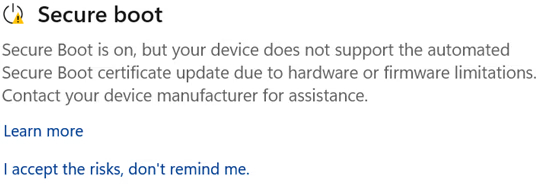
  1. “Secure Boot is on, but your device does not support the automated Secure Boot certificate update due to hardware or firmware limitations.”

Devices with this message may no longer be supported by your OEM, or the OEM might no longer be able to provide the firmware updates needed. Microsoft recommends checking your OEM’s Secure Boot support page to confirm whether your device is out of support.

Via WindowsLatest

Confused about your PC specs or hardware? Windows 11's Copilot app is getting new powers to help you 'understand your device'

  • Windows 11's Copilot app has a new feature in testing
  • 'PC insights' provides an easy way to receive clear answers to hardware-based questions about your device and its specs
  • While there are some fears over privacy (and bloat), Microsoft has made it clear that Copilot needs to be granted permission to access your system and files

Copilot is getting a new ability to answer questions about your PC's hardware, allowing the AI to tap into the relevant hardware details to do so – and while Microsoft is treading carefully with privacy here, that's unlikely to stop some level of paranoia.

Windows Latest flagged the introduction of 'PC insights' for the Copilot app on Windows 11, which as Microsoft explains, "enables customers to conversationally ask Copilot questions about their Windows PC and receive clear responses based on their device's state without having to dig through system settings."

This is currently an experimental feature, so still in testing, and an optional ability that you must turn on for it to be in play. Windows Latest notes that it's gradually rolling out, but only in the US for now.

You can ask Copilot how much RAM you have, or storage space left, or what your GPU is, and the current level of usage for your processor, and a whole bunch of similar component-related queries. You can ask about elements as diverse as whether you have an antivirus running, or what your laptop's battery health is, diving into mild troubleshooting territory should you wish.

To get its answers, the Copilot app hooks up to Windows APIs to analyze your system, and the AI asks for permission to do this. You can allow it access to your PC's hardware details on a one-time basis for that session only, or you can elect to 'always allow' if you're happy to give Copilot this access on a more permanent basis.

Analysis: fears over hallucinations and bloat

Young woman using Windows 11 laptop, looking annoyed

(Image credit: Getty Images)

As ever, this is AI, and as Microsoft notes, Copilot "may not always provide complete or accurate information", especially during this testing phase. So, if you do get a chance to try out PC insights, maintain a healthy sense of skepticism with the responses you get.

As Windows Latest makes clear, there's also a certain irony about a Windows 11 user checking up on resource usage, perhaps due to system sluggishness, employing the Copilot AI to run diagnostics when the app itself uses the best part of 1GB of RAM when running in the background and doing nothing.

That doesn't stop this new PC insights feature from being situationally useful, of course. Some of the reaction has come from a place of disdain, though, as you might guess, with comments such as the one from this Redditor: "Oh hey it's like Task Manager except instead of lightweight and authoritative, it's bloated and might be lying to me."

Of course, this is a feature aimed at less well-informed PC owners, not those who can easily understand what's happening in Task Manager at a glance. Criticism around the bloat of the Copilot app is fair enough, mind, and this is because in its most recent incarnation, Microsoft changed things so the app is essentially a standalone spin-off of the Edge browser.

Another worry is that of privacy, and having Copilot 'snoop around' on your machine, but as noted, there are clear requests for permissions, and the new feature is strictly opt-in. You don't ever have to go near PC insights if you don't want to. It's also worth noting that giving the Copilot app access permissions doesn't mean it can read the actual contents of files, but only their sizes (for weighing up questions about storage and the like).

At the moment, this is a purely informative or troubleshooting feature, and in the case of attempted diagnostics, it may point to issues with your PC, but won't resolve them for you. However, it's not difficult to envision where Microsoft might head with this, in terms of getting Copilot to implement fixes for certain issues that the AI flags up. I'm talking simple Settings changes rather than anything in-depth, and this has always been the idea of Copilot (even though it hasn't yet been realized to much of an extent).

When we get AI agents in Windows 11 – and they are coming, make no mistake – this kind of functionality may turn into a full-on troubleshooting agent. The trouble (pun not intended) with that being that the mistakes and hallucinations that AI can make could be considerably more aggravating in this kind of scenario.

Apple’s app subscription bundles are too rigid and inflexible — here's how I'd overhaul them if I were CEO-to-be John Ternus

There used to be a time when you’d buy an Apple app by paying for it once and never again. Then along came the idea of app subscriptions, and slowly but surely, Apple has started selling more and more of its software products through recurring payments. From iCloud+ to Apple TV, there are many ways to spend your cash on Apple’s wares on an ongoing basis.

Today, Apple flogs bundles of its own apps to its users, with Apple One in particular offering a cluster of apps for a single monthly price. And Apple hasn’t stopped there, with the Creator Studio package being introduced a few months ago for users of its artistic apps.

But while these app groupings ostensibly give you a way to get the software you need without paying multiple subscription fees, I’m starting to worry about how they restrict your choices and force you down avenues you might not want to travel.

Not only can they be expensive, but they’re also inflexible, giving you very little ability to customize them to your needs. If subscriptions are the future of app monetization, then Apple needs to do a whole lot better.

Enter the Creator Studio

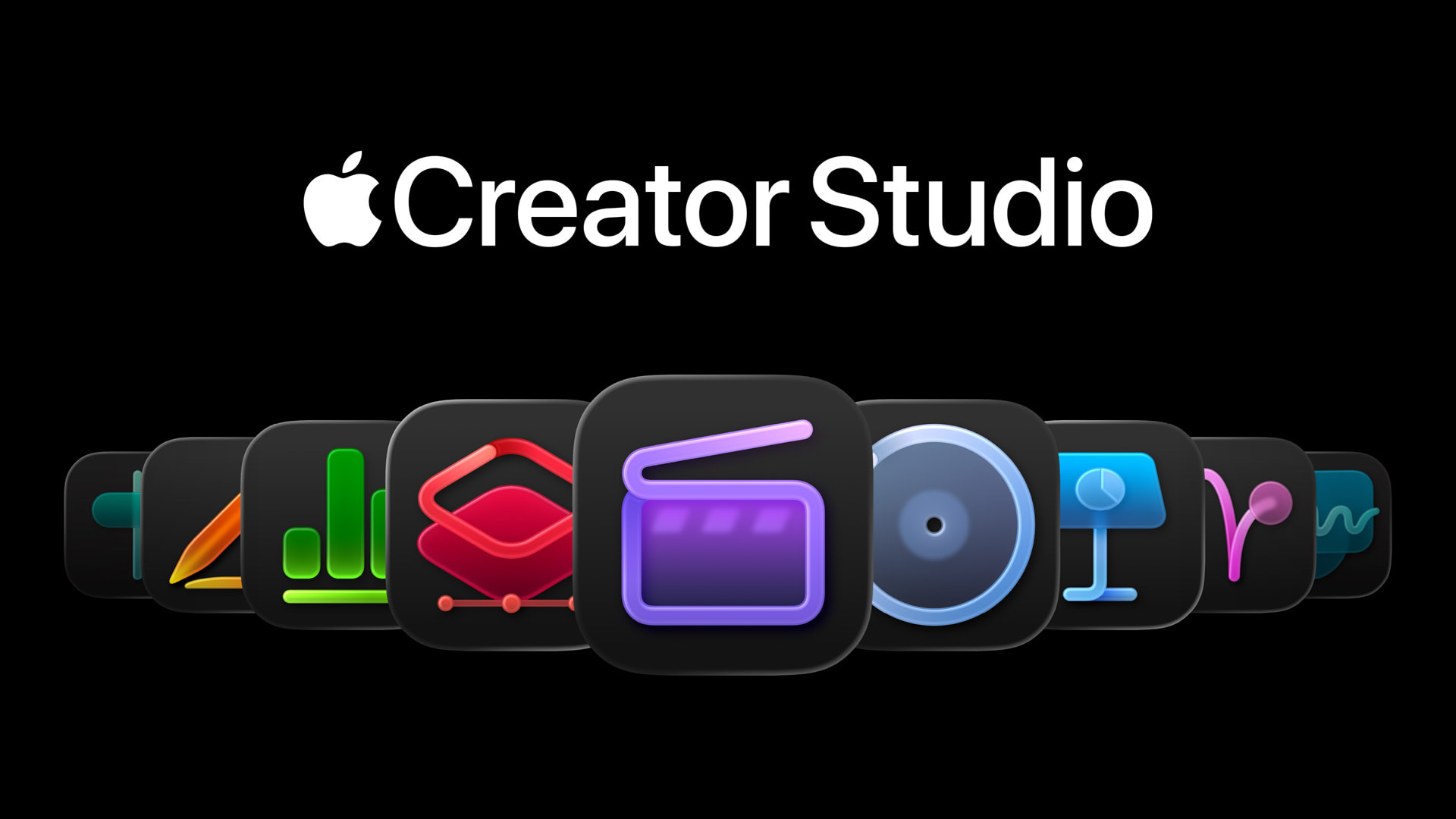
Apple Creator Studio

(Image credit: Apple)

Apple likes to portray itself as the company of creatives — think about its “Here’s to the crazy ones” or “I’m a Mac” commercials of days gone by. And the firm already sells apps made specifically for this demographic, including Logic Pro, Final Cut Pro, Pixelmator Pro, and more. So it makes sense that Apple would want to offer a software suite that grants interested users access for a single fee, instead of requiring several payments, whether one-off or ongoing.

That’s what you get with the Creator Studio, which is priced at $12.99 / £12.99 / AU$19.99 a month or $129 / £129 / AU$199 a year. In return for your cash, you get a pass for the following apps:

  • Final Cut Pro
  • Logic Pro
  • Pixelmator Pro
  • Keynote
  • Pages
  • Numbers
  • Motion
  • Compressor
  • MainStage

And yes, some of these apps — like Keynote, Pages, and Numbers — are already free, but pay the Creator Studio entry fee and you get “a library of high-quality, royalty-free photos and graphics, and powerful intelligence features” in addition to what comes with the toll-free editions, Apple says.

Considering Logic Pro alone costs $199.99 if you want to buy it outright (rather than pay an ongoing subscription), this package might seem like a rather good deal. But it’s not the price that I’m interested in — it’s the way app bundles like Creator Studio work.

Right now, there are two main app collections available from Apple: Creator Studio and Apple One. While Creator Studio contains the aforementioned creative apps, Apple One starts at $19.95 / £18.95 / AU$24.95 a month and comes with 50GB of iCloud+ storage, plus memberships to Apple TV, Apple Music, and Apple Arcade.

There are two additional tiers, with the most expensive costing $37.95 / £36.95 / AU$49.95 a month and throwing in 2TB of iCloud+ storage, Apple Fitness+, and Apple News+, in addition to what’s already in the entry-level option.

But what if you want to mix and match your apps and services from Apple? What if you want, say, Logic Pro and Final Cut Pro from Creator Studio, plus Apple Music, Apple Fitness+, and Apple News+? Well, you’re going to have to either take out the top Apple One bundle and separately buy those creative apps outright, or you’ve got to pay for memberships of two distinct ongoing subscriptions.

In this instance, combining Creator Studio with the most expensive edition of Apple One means paying $50.94 a month when all you want are five apps. The rest of the content you pay for is superfluous. Throw in AppleCare+, and you’re forking out even more.

Apple gives practically no flexibility or customization with its app collections. You can’t mix and match apps and services, and if there are some you want from both subscriptions, you’ve got to pay for both. That makes it an incredibly expensive way to go.

But with Apple seemingly getting evermore enthusiastic about subscriptions — and the revenue they bring in — don’t be surprised if this state of affairs continues.

Is there a better way?

Apple Event 2020

(Image credit: Apple)

You might feel that, since Creator Studio is relatively new, Apple is still working out the logistics of how to sell the apps and services it contains. But Apple is no stranger to subscriptions. It’s been offering the likes of Apple Music and Apple Arcade for years now, so it knows a thing or two about how to structure subscription offerings.

Is the lack of flexibility here and the absence of any way to pick and choose apps a deliberate policy on Apple’s behalf? We can’t know for sure, but it’s not a good look.

While the Creator Studio might seem like a decent bargain on its face, it becomes considerably less so if you’re not interested in everything it offers and want to pair its apps with those from the Apple One bundle.

Considering how keen Apple seems to be on subscriptions, I’m surprised it doesn’t offer individual memberships for each component app within these packages. For instance, why is there no individual subscription for Pixelmator Pro? Instead, you’ve got to choose between a one-off fee or the full Creator Studio.

If Apple were to go down this route — and it's what I'd do if I were CEO-to-be John Ternus — it would instantly solve the problem of pairing different apps from different collections. You could simply add whichever apps you wanted to your own “build a bundle” package and get exactly what you need for a more acceptable price.

But that kind of process doesn’t seem to be anywhere on the horizon. There are no rumors saying it’s coming, no telltale clues nestled in Apple’s code. Don’t hold your breath for its imminent arrival.

Until we do get something like that, Apple customers are going to continue to feel ripped off by a rigid, inflexible system that is happy to take their cash in return for apps they don’t want or need. It’s a situation that’s in desperate need of a rethink.

❌