Reading view

8 Android 17 features in development you’ll actually care about
Android 17 top features

Google has already released four betas of Android 17, which are more than enough to show us what the upcoming version has in store. There are some new, exciting features, as well as many essential upgrades to existing ones, that make the software more useful and feature-rich.

With the stable Android 17 release approaching, here are the eight features or upgrades I can’t wait to try.

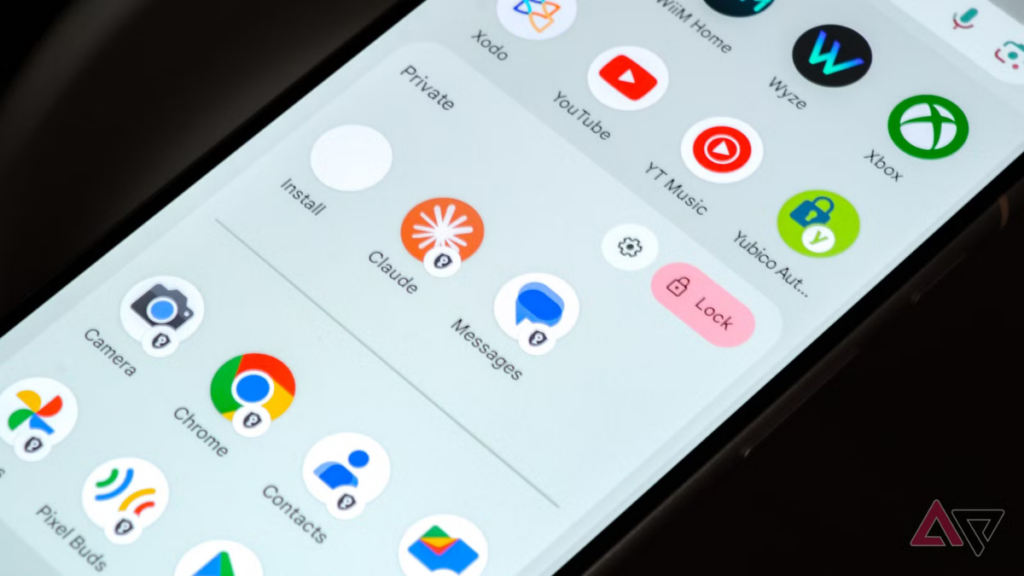
1. A native app lock, finally

Google is finally bringing the ability to lock individual apps, a feature users have been requesting for years. You will be able to lock apps directly from the home screen by long-pressing an app icon and choosing the “App lock” option from the quick options menu.

You can set up app lock using a PIN, pattern, password, or biometrics like fingerprint or face unlock, without needing a third-party app. This feature on the Google Pixel works just like any other app lock, but keep in mind that notifications for a locked app, along with all associated shortcuts and widgets, will be hidden.

Google notes that certain AI features, such as Gemini’s screen automation, may still be able to interact with apps, depending on permissions. You’ll be notified if other apps have access to the app you’re locking.

Most Android skins, including One UI, already have this feature, but it’s a nice welcome addition for Google Pixels.

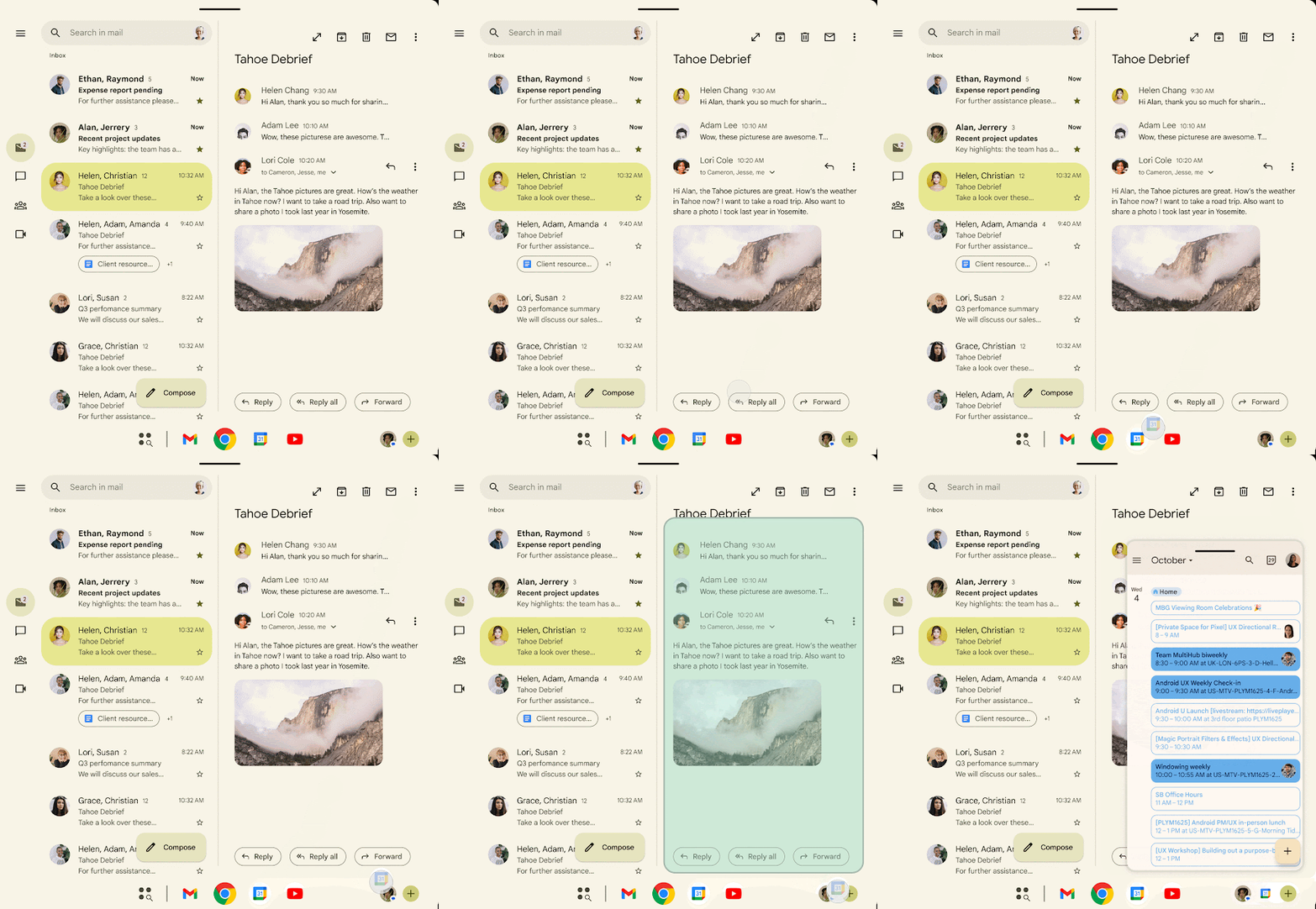
2. Floating app bubbles make multitasking easier

The bubble feature has been around for quite a few years now, but it was restricted to messaging and conversations. Android 17 takes it a major step forward by allowing users to turn any app into a floating bubble.

For example, if you’re watching a tutorial on YouTube and noting important steps on Google Keep, you’ll be able to convert Google Keep into a floating bubble for quicker access. When you tap the Keep bubble, the app will open in a small floating window, while the YouTube tutorial plays in full screen. This is better than switching between the two apps and using them in a split-screen view.

You will be able to close an app bubble by dragging it to the bottom of the screen.

Bubbles are more useful on large-screen devices like foldables or tablets where the user has more screen to work with than on a regular smartphone.

3. A more powerful screen recording with a preview screen

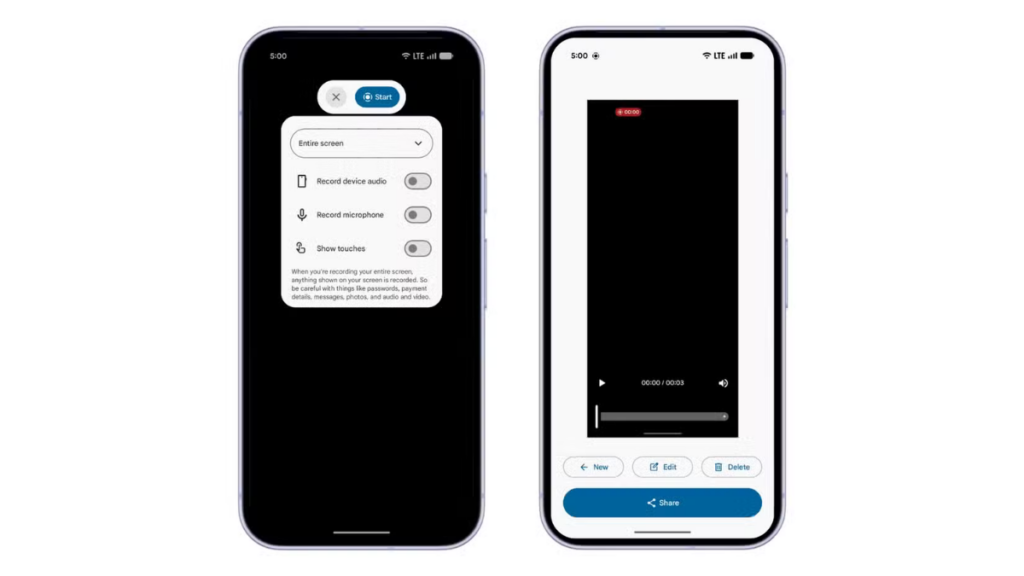
Android 17 will upgrade the screen recording experience with a more refined UI and a new preview screen. Currently, when you tap the screen recording tile in Quick Settings, a pop-up shows up asking about the recording area and audio options.

In Android 17, when you tap the screen recording tile, a new floating pill interface will show up, letting you choose what to record, whether to record device audio or microphone (or both), and whether to show touches. You can tap the status indicator in the status bar to bring back the floating pill UI.

screen recording in Android 17

Once you stop the recording, you’ll see a new preview screen where you can play, edit, delete, or share the clip instantly without opening the gallery.

4. Mandatory Large-Screen Adaptivity

Google enforces a stricter policy on app resizability and orientation, preventing developers from restricting apps to a single orientation on large devices (sw ≥ 600dp). This effectively skips smartphones (generally below 600dp) and targets tablets and larger-screen devices.

The latest move is designed to make Android apps truly adaptive. On a device running Android 16 or an earlier build, if you open a portrait-locked app on a landscape tablet, the app appears as a tall, narrow window in the center of the screen, with thick black bars on the sides. In Android 17, the app would rotate to fill the gap, resulting in a more usable screen and better app experience.

Games are exempted from these strict mandates to ensure they don’t break during critical gameplay.

Google began phasing out apps’ ability to restrict screen orientation and resizability on large-screen devices with Android 16. However, it still allowed app developers to opt out of this change. But Android 17 makes it mandatory, and developers will no longer be able to opt out.

5. Hide app names on the home screen

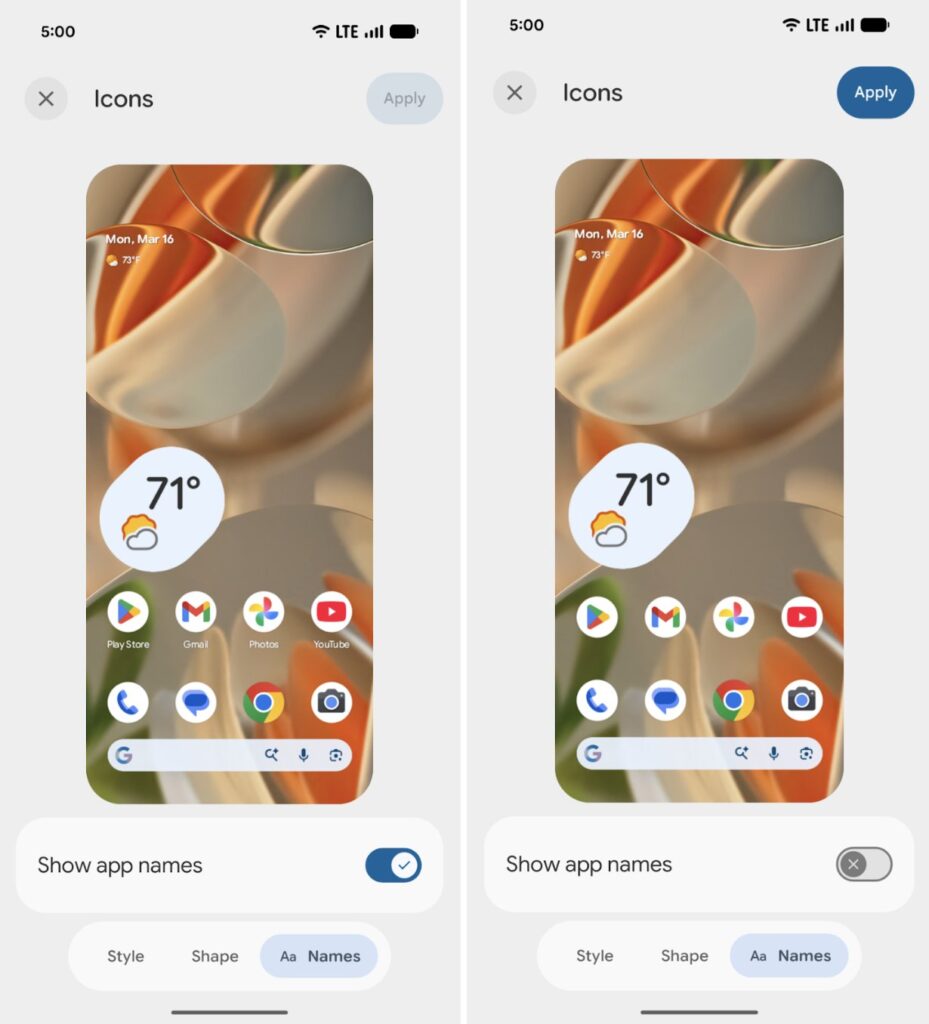
In the Beta 3 build, Google introduced a feature that lets users hide the app labels on the home screen. This isn’t a big step, but it helps users create a cleaner home screen setup.

To hide app labels, you’ll need to go to Wallpaper & style, tap Home screen, select Icons, tap the Names tab at the bottom, and turn off the toggle for Show app names. Keep in mind that this won’t affect the app drawer or apps inside folders.

6. Separate Wi-Fi and mobile data toggles

On Pixel devices running Android 16 or earlier, if you need to switch between Wi-Fi and mobile data, or turn them on or off, you must open Quick Settings, tap the Internet tile, and then perform the action.

Many users have expressed their frustration with the extra step required to access Wi-Fi or mobile data. After nearly four and a half years, Google is finally allowing users to add separate Wi-Fi and mobile data toggles in Android 17.

This change would particularly benefit Pixel users, as most other Android skins, including Samsung’s One UI and OnePlus’s OxygenOS, already have it.

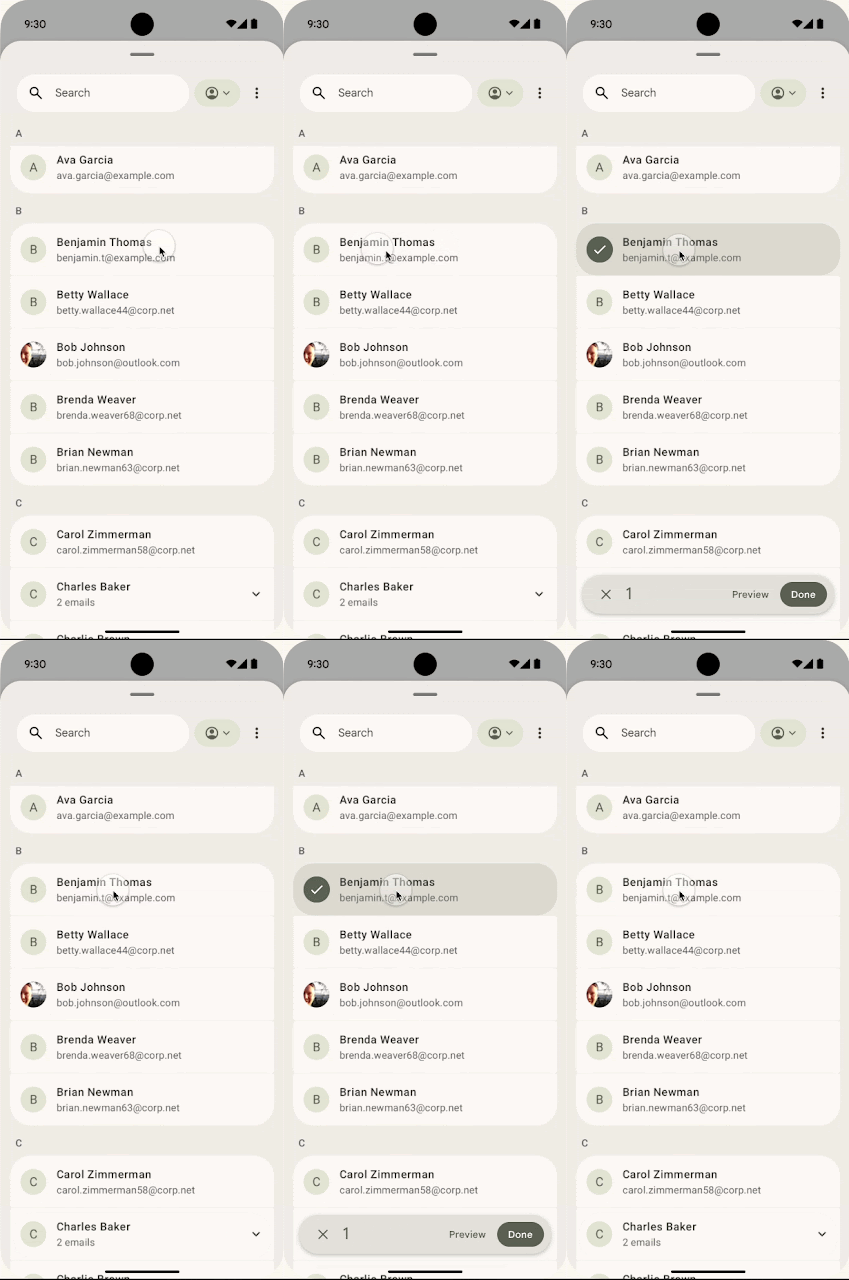
7. Give apps limited access to your contacts

Right now, there’s no way to give apps access to specific contacts. If you grant the contacts permission, the app will have access to all contacts stored on your device.

This is certainly not a privacy-focused approach, and therefore, Google is introducing a new system-level Contact Picker interface that will allow users to select one or more contacts to share with an app at a time. Google says apps won’t be able to track any changes you make to a contact’s information.

Contact Picker grants temporary, session-based read access to the specific data fields selected by the user. That means the app will need to request permissions again after the session timeout, further strengthening users’ privacy.

8. Seamless task continuity on another device

Google is working on a “Task Continuity” feature, which will allow users to sync notifications, share files, and continue apps across their linked Android devices. Essentially, you will be able to transfer an app’s current state from one Android device to another. This feature could debut with Android 17.

This feature will show a suggestion on the taskbar representing the running app from another device. When you click this suggestion, the system initiates the handoff and passes the remote app’s state, as Android Authority explains.

Google announced the new Handoff API in Android 17 Beta 2, which allows developers to specify the application state to resume on another device. Once enabled, the Android system displays a handoff suggestion in the launcher of the user’s nearby devices.

Final build may not include all of them

If you’ve been following Android releases, you’d know that Google doesn’t include all the features from the beta builds into the final package. But there’s a very good chance some of them will make it to the final release.

All the features we’ve discussed so far are available in the Android 17 beta releases. You can get an eligible Google Pixel to test them or wait for the stable release, which could happen around June 2026.

We’ll regularly update you with the latest information in the Android 17 section on this website. You can visit the page regularly for the latest details, or join our Telegram channel for instant updates.

The post 8 Android 17 features in development you’ll actually care about appeared first on Gizmochina.
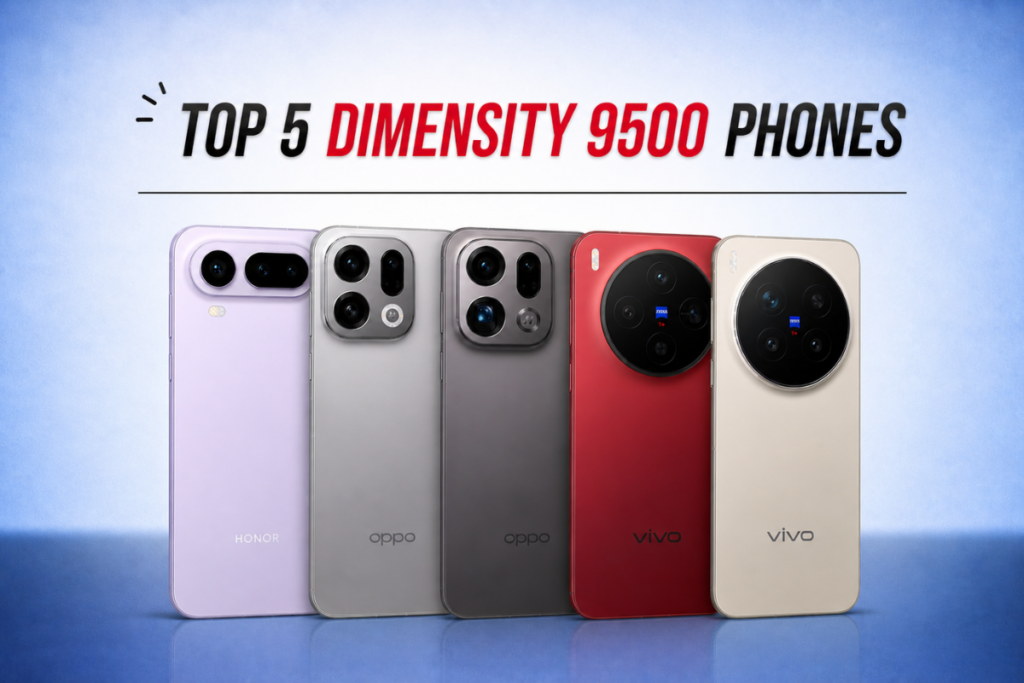
Top 5 Dimensity 9500 phones in 2026

Dimensity 9500 phones

The Dimensity 9500 is MediaTek’s most powerful smartphone chipset right now, with performance and efficiency going toe-to-toe with Qualcomm’s Snapdragon 8 Elite Gen 5 SoC, but at a lower price point.

If you’re in for a high-end upgrade with strong hardware and long-term software support, these are the top five Dimensity 9500-powered smartphones to watch in 2026.

5 Best Dimensity 9500 smartphones in 2026

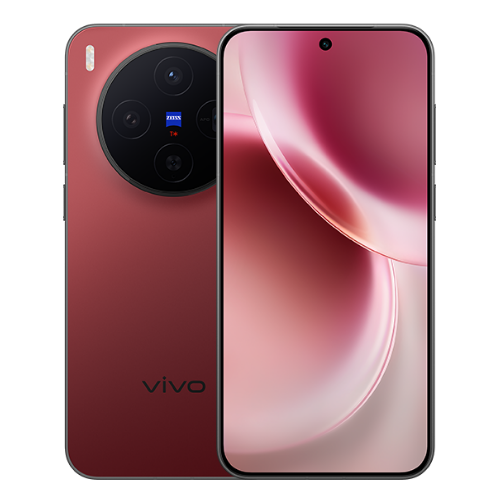
1. Vivo X300 Pro

The Vivo X300 Pro offers excellent rear cameras. The triple camera setup includes a 50MP primary shooter, a 200MP periscope telephoto lens, and a 50MP ultrawide camera. The 50MP selfie camera takes great shots with excellent details.

The smartphone features a 6.78-inch LTPO AMOLED screen with a 120Hz refresh rate and 4500 nits of peak brightness. It supports HDR10+ and Dolby Vision. The device ships with Android 16 out of the box and promises up to five generations of OS upgrades, all the way up to Android 21.

The X300 Pro houses a 6,540mAh battery, but the EU markets get a slightly lower capacity at 5,440mAh. The charging capabilities remain the same across all markets: 90W wired fast charging and 40W wireless charging support. The Vivo phone also offers strong connectivity, featuring Wi-Fi 7, Bluetooth 5.4, NFC, and USB Type-C 3.2.

Vivo X300 Pro specs:

  • Display: 6.78-inch LTPO AMOLED, 1260 x 2800 pixels, 120Hz refresh rate, HDR10+, HDR Vivid, Dolby Vision, 4500 nits (peak)
  • Processor: MediaTek Dimensity 9500 (3 nm)
  • Software: Android 16, up to five major Android upgrades
  • Rear camera: 50MP (wide) + 200MP (periscope telephoto, 3.7x optical zoom) + 50MP (119˚ ultrawide)
  • Selfie camera: 50MP
  • Battery: 6510mAh (global), 5440mAh (EU markets)
  • Charging: 90W (wired), 40W (wireless)
  • Connectivity: Wi-Fi 7, Bluetooth 5.4, NFC, USB Type-C 3.2

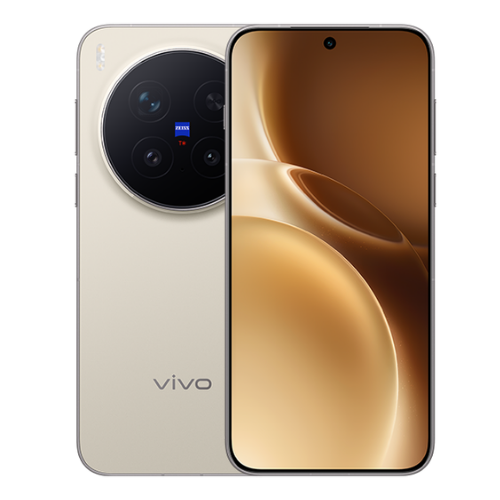
2. Vivo X300

The Vivo X300 (review) is a compact flagship phone, featuring a 6.31-inch LTPO AMOLED screen. It supports a 120Hz refresh rate, HDR10+, HDR Vivid, and a peak brightness of 4500 nits.

The smartphone features a different camera setup than its Pro model. The triple camera setup includes a 200MP primary camera, a 50MP periscope telephoto lens, and a 50MP ultrawide camera. The selfie camera is still a 50MP snapper. The X300 also boots Android 16 out of the box and promises OS upgrades up to Android 21.

The Vivo X300 packs a 6,040mAh battery, with EU markets getting a slightly lower capacity of 5,360mAh. The charging speeds, though, match the Pro model, so you still get 90W wired charging and 40W wireless charging.

Vivo X300 Pro specs:

  • Display: 6.31-inch LTPO AMOLED, 1216 x 2640 pixels, 120Hz refresh rate, HDR10+, HDR Vivid, 4500 nits (peak)
  • Processor: MediaTek Dimensity 9500 (3 nm)
  • Software: Android 16, up to five major Android upgrades
  • Rear camera: 200MP (wide) + 50MP (periscope telephoto, 3x optical zoom) + 50MP (119˚ ultrawide)
  • Selfie camera: 50MP
  • Battery: 6040mAh (global), 5360mAh (EU markets)
  • Charging: 90W (wired), 40W (wireless)
  • Connectivity: Wi-Fi 7, Bluetooth 5.4, NFC, USB Type-C 3.2

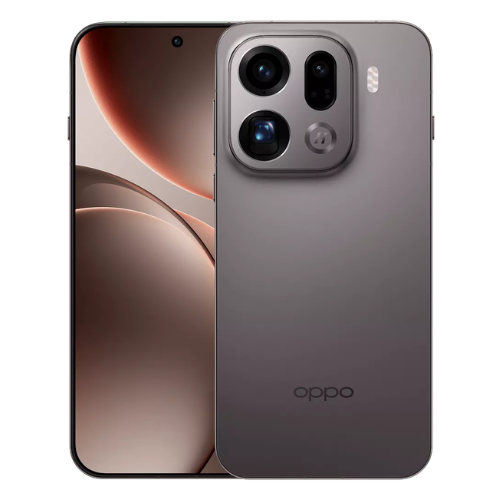
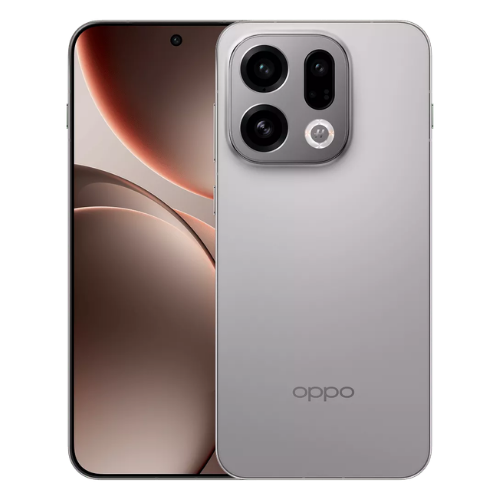
3. Oppo Find X9 Pro

The Find X9 Pro (review) has a 6.78-inch LTPO AMOLED panel with a 120Hz refresh rate, HDR10+, HDR Vivid, and a peak brightness of 3600 nits. The display specs closely resemble the Vivo X300 Pro, and so do the camera specs, which include a 50MP primary camera, a 200MP periscope telephoto lens, and a 50MP ultrawide camera. The selfie camera is also a 50MP snapper.

The Oppo Find X9 Pro boots Android 16 and promises five major Android OS upgrades, up to Android 21. On the battery side, it houses a 7,500mAh battery with support for 80W wired charging and 50W wireless charging. Connectivity specs include Wi-Fi 7, Bluetooth 6.0, NFC, and USB Type-C 3.2.

Oppo Find X9 Pro specs:

  • Display: 6.78-inch LTPO AMOLED, 1272 x 2772 pixels, 120Hz refresh rate, HDR10+, HDR Vivid, Dolby Vision, 3600 nits (peak)
  • Processor: MediaTek Dimensity 9500 (3 nm)
  • Software: Android 16, up to five major Android upgrades
  • Rear camera: 50MP (wide) + 200MP (periscope telephoto, 3x optical zoom) + 50MP (120˚ ultrawide)
  • Selfie camera: 50MP
  • Battery: 7500mAh
  • Charging: 80W (wired), 50W (wireless)
  • Connectivity: Wi-Fi 7, Bluetooth 6.0, NFC, USB Type-C 3.2

4. Oppo Find X9

The standard Find X9 (review) is a compact flagship phone featuring a 6.59-inch AMOLED screen with a 120Hz refresh rate, HDR10+, and 3600 nits of peak brightness. It boots Android 16 and promises OS upgrades up to Android 21.

The smartphone features three rear cameras, all with 50MP resolution. It includes a primary camera, a periscope telephoto lens with 3x optical zoom, and a 50MP ultrawide camera. The selfie camera has a lower resolution of 32MP.

Inside the device is a 7,025mAh battery with support for 80W wired and 50W wireless charging. On the connectivity side, the device supports Wi-Fi 7, Bluetooth 6.0, and NFC.

Oppo Find X9 specs:

  • Display: 6.59-inch AMOLED, 1256 x 2760 pixels, 120Hz refresh rate, HDR10+, HDR Vivid, 3600 nits (peak)
  • Processor: MediaTek Dimensity 9500 (3 nm)
  • Software: Android 16, up to five major Android upgrades
  • Rear camera: 50MP (wide) + 50MP (periscope telephoto, 3x optical zoom) + 50MP (120˚ ultrawide)
  • Selfie camera: 32MP
  • Battery: 7025mAh
  • Charging: 80W (wired), 50W (wireless)
  • Connectivity: Wi-Fi 7, Bluetooth 6.0, NFC, USB Type-C

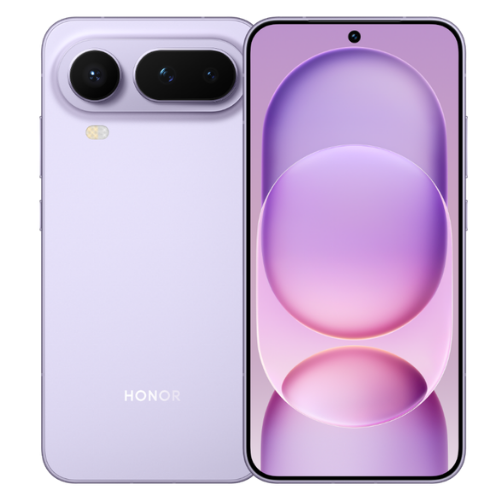
5. Honor Magic 8 Pro Air

The Honor Magic 8 Pro Air (review) is currently exclusive to China. However, a global release is expected to follow soon, though an official confirmation is still awaited. The phone ships with a 6.31-inch LTPO OLED panel, featuring a 120Hz refresh rate, Dolby Vision, and 6000 nits of peak brightness.

The smartphone boots Android 16 OS with the MagicOS 10 skin on top of it. It features a triple camera setup on the back, comprising a 50MP primary shooter, a 64MP periscope telephoto lens, and a 50MP ultrawide camera. The front side has a 50MP selfie snapper.

The Magic 8 Pro Air houses a 5,500mAh battery with 80W wired and 50W wireless charging support. And its connectivity specs include Wi-Fi 7, Bluetooth 6.0, NFC, and USB Type-C 2.0.

Honor Magic 8 Pro Air specs:

  • Display: 6.31-inch LTPO OLED, 1216 x 2640 pixels, 120Hz refresh rate, HDR Vivid, 6000 nits (peak)
  • Processor: MediaTek Dimensity 9500 (3 nm)
  • Software: Android 16, MagicOS 10
  • Rear camera: 50MP (wide) + 64MP (periscope telephoto, 3.2x optical zoom) + 50MP (112˚ ultrawide)
  • Selfie camera: 50MP
  • Battery: 5500mAh
  • Charging: 80W (wired), 50W (wireless)
  • Connectivity: Wi-Fi 7, Bluetooth 6.0, NFC, USB Type-C 2.0

The post Top 5 Dimensity 9500 phones in 2026 appeared first on Gizmochina.
Samsung’s April 2026 security update is out for these devices

April 2026 security update for Samsung phones

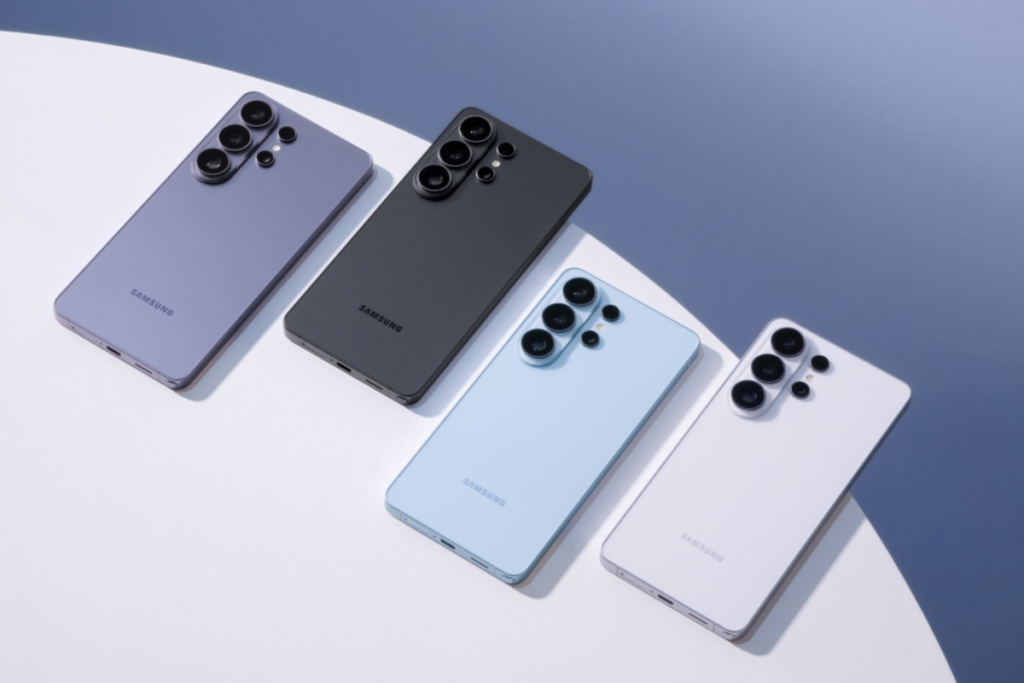
Samsung’s security update rollout, which had lagged in the last couple of months, is finally getting back on track. The April 2026 security patch started rolling out to the Galaxy S26 series on the very first day of April, and it has gradually expanded to over a dozen Galaxy devices since.

Here’s a list of Galaxy devices that have started receiving the April 2026 security update:

Galaxy S series

  • Galaxy S26, S26+, S26 Ultra
  • Galaxy S25, S25+, S25 Ultra, S25 Edge, S25 FE
  • Galaxy S24, S24+, S24 Ultra, S24 FE
  • Galaxy S23, S23+, S23 Ultra, S23 FE

Galaxy Z series

  • Galaxy Z TriFold
  • Galaxy Z Fold 7, Z Flip 7, Z Flip 7 FE
  • Galaxy Z Fold Special Edition
  • Galaxy Z Fold 6, Z Flip 6
  • Galaxy Z Fold 5, Z Flip 5
  • Galaxy Z Fold 4, Z Flip 4

Galaxy A series

  • Galaxy A57, A56, A55, A54, A53
  • Galaxy A37, A36, A35, A34
  • Galaxy A26, A25
  • Galaxy A16, A15
  • Galaxy A07, A07 4G

Galaxy M series

  • Galaxy M54
  • Galaxy M16

Galaxy Tab series

  • Galaxy Tab S10+, Tab S10 Ultra
  • Galaxy Tab A11+

Galaxy XCover series

  • Galaxy XCover 7, XCover 7 Pro
  • Galaxy XCover 6 Pro

Samsung releases software updates in batches, so even if your device is on the list, it may take a few days before the update shows up. You can manually check for updates by navigating to Settings > Software updates > Download and install.

The April 2026 security patch, like any other, fixes vulnerabilities found in the previous software version. It doesn’t include new features or visual upgrades, but it strengthens security to keep the device safe from critical security flaws.

The April security patch, in particular, addresses 47 vulnerabilities in total. Of these, 33 come from Google as part of the Android Security Bulletin for April 2026, 10 from Samsung Mobile, and the remaining 4 from Samsung Semiconductor. Some of those Samsung-specific patches are related to Device Care and DeX.

There are still many more Galaxy devices in line to receive the latest security update. The rollout should gradually cover them over the coming days and weeks. We’ll update the list periodically to ensure it remains fresh. You can revisit the page later for the latest information.

While the security update rollout is back on track after being delayed in February and March, Samsung is still struggling with One UI 8.5. The company hasn’t begun rolling out the update despite a really long beta program. Hopefully, the wait will be over soon. You can check the One UI 8.5 eligible devices list here.

We’ll update you with the latest developments in our Samsung section. You can visit the page from time to time to stay updated. Or, join our Telegram channel to get instant updates.

The post Samsung’s April 2026 security update is out for these devices appeared first on Gizmochina.
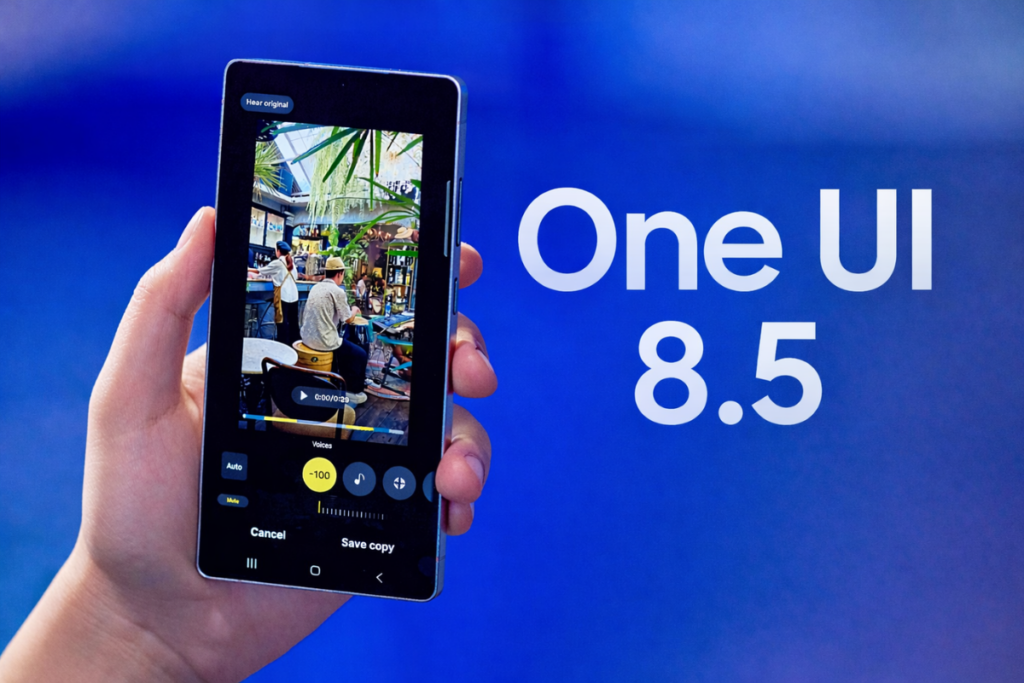
5 One UI 8.5 features I can’t wait to use

One UI 8.5 features
One UI 8.5 features

One UI 8.5 rollout is about to begin, and dozens of Galaxy models are lined up to receive this feature-rich upgrade that doesn’t look like an incremental upgrade at all. It brings numerous visual upgrades, new features, and expanded customization options that really level up the software experience.

Among the long list of changes coming to One UI 8.5, there are five features I am most excited about. I really wish Samsung would bring them to the majority of eligible devices.

1. Modern Liquid Glass interface with smoother animations

One UI 8.5 - Phone app
Liquid Glass interface in One UI 8.5

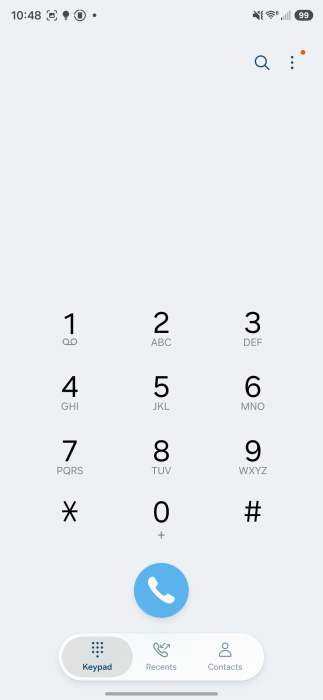
One UI 8.5 introduces Liquid Glass design for the first time on Galaxy devices. We know where the inspiration comes from (hello, Apple). The updated design language emphasizes transparency, floating surfaces, rounded controls, and soft depth effects across core apps and the system UI, making One UI feel more premium and modern.

Part of this new design language includes floating navigation bars with semi-transparent panels and more pronounced blur and shadow layering to create a “glass” feel. You’ll see it in the Settings app and first-party apps like Dialer, Gallery, and Calculator, replacing the traditional flat, rectangular navigation bar. The back button and other controls appear as separated floating elements, allowing more room for content.

The new Liquid Glass design is most prominent in Samsung’s own apps, but other areas, including notifications, widgets, and the control center, also receive a subtle glass-style treatment.

2. Fully customizable Quick Panel

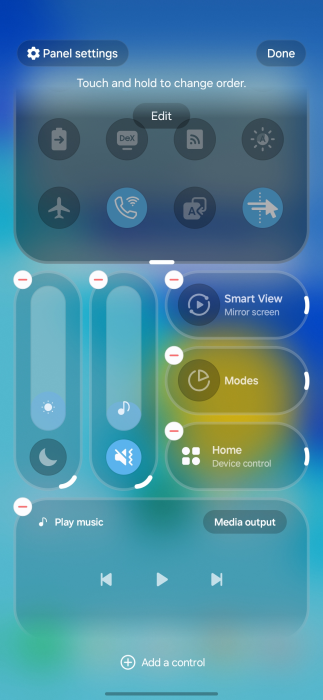
One UI 8.5 Quick Settings Panel screenshot-1
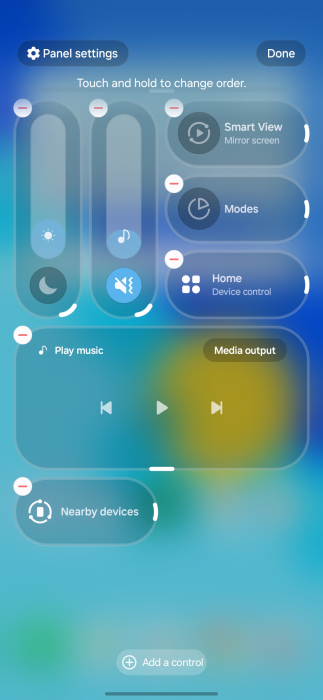
One UI 8.5 Quick Settings Panel screenshot-2
Quick Panel customization in One UI 8.5

The Quick Panel in One UI 8.5 is receiving its biggest customization update yet. You can now move tiles and widgets wherever you want, resize them, or change their orientation to create a layout that is perfect for you. You can even remove every toggle to get an almost empty panel.

Brightness and volume sliders are also part of the latest changes, with the ability to switch between horizontal and portrait-style layouts. You can customize the panel however you like instead of using Samsung’s default layout. The panel can become messy if you over-customize, but Samsung’s got you covered. You can easily reset to the default layout.

3. Calling gets a major AI upgrade

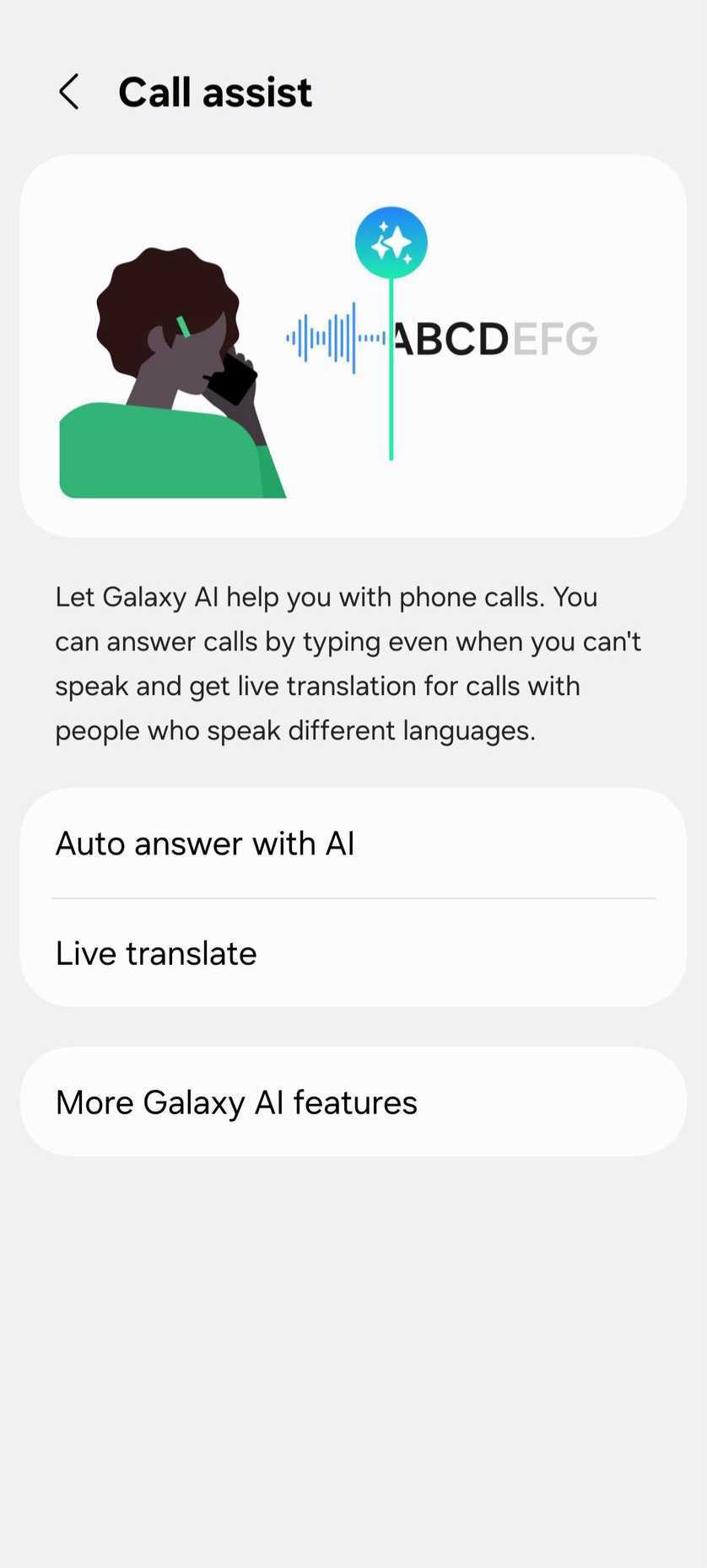
Call Assist in One UI 8.5
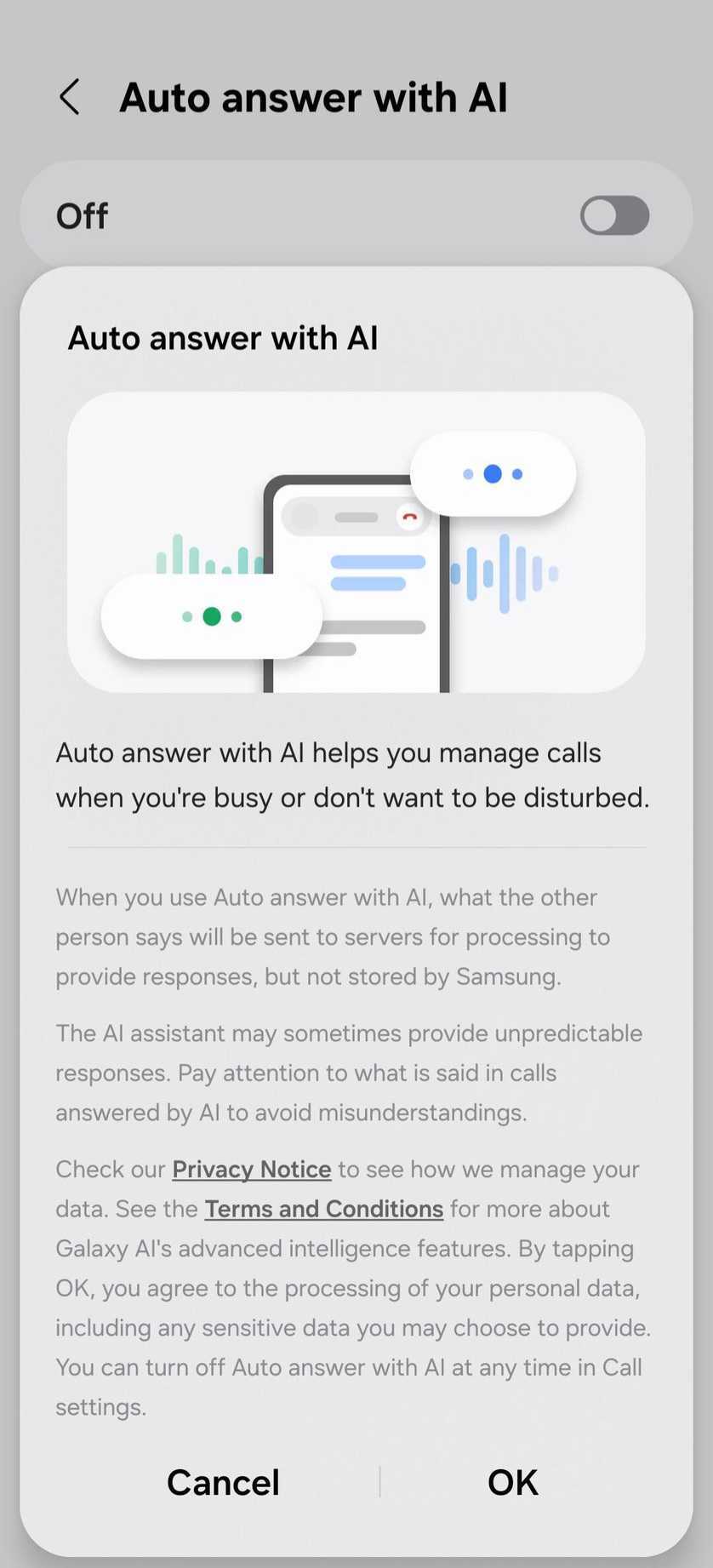
Auto answer with AI feature in One UI 8.5
Image credit: Sammobile

One UI 8.5 brings major upgrades to calling, now allowing the phone to automatically answer unknown or suspected spam calls. The AI assistant asks the caller’s purpose, shows you a live transcript, and lets you decide whether to pick up or mark as spam. This is a big step up from the manual Bixby Text Call, helping you avoid interruptions from robocalls or telemarketers.

You can also enable the auto answer with AI feature to let the device automatically answer calls after a specific delay (5-30 seconds) and provide a live text transcript. This is particularly useful when you are busy or have Do Not Disturb enabled, allowing you to see the caller’s query via a live transcript before even picking up the call.

One UI 8.5 also introduces a direct voicemail feature that lets callers leave a voice message directly on your device rather than a carrier server. You can see the live transcript of the voicemail as it is being recorded in real-time.

Even during a normal call, you can see real-time call options, making it easier to follow in loud environments. Another small but useful upgrade is that the Now Bar shows a dedicated counter for missed calls, making it easier to track without unlocking the device.

4. A new Creative Studio app for AI creativity

Creative Studio in One UI 8.5

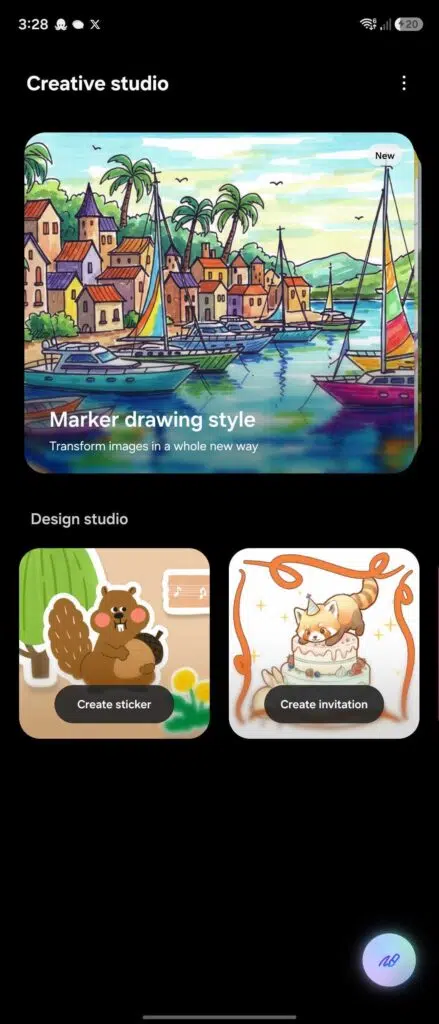
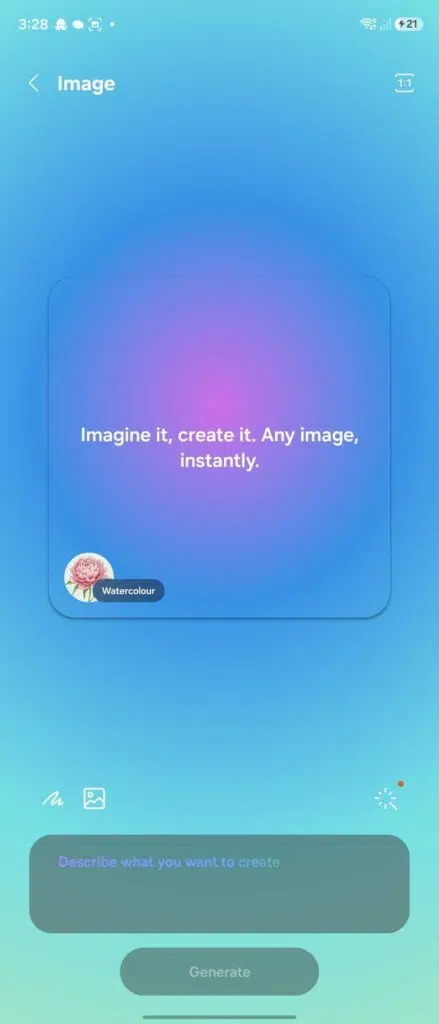
Samsung has added a new Creative Studio app in One UI 8.5, which is basically a central hub for generative AI creativity. The app lets users create wallpapers, stickers, greeting cards, invitations, and profile cards with simple sketches, existing photos, or text prompts.

Creative Studio app - One UI 8.5
Image generation in Creative Studio app - One UI 8.5
Image credit: Sammyfans

The app supports multiple aspect ratios (such as 16:9 and 4:3) and various art styles, including Childhood Sketch, Marker Drawing, and Oil Painting.

5. Sharing files got a lot easier (even with Apple devices)

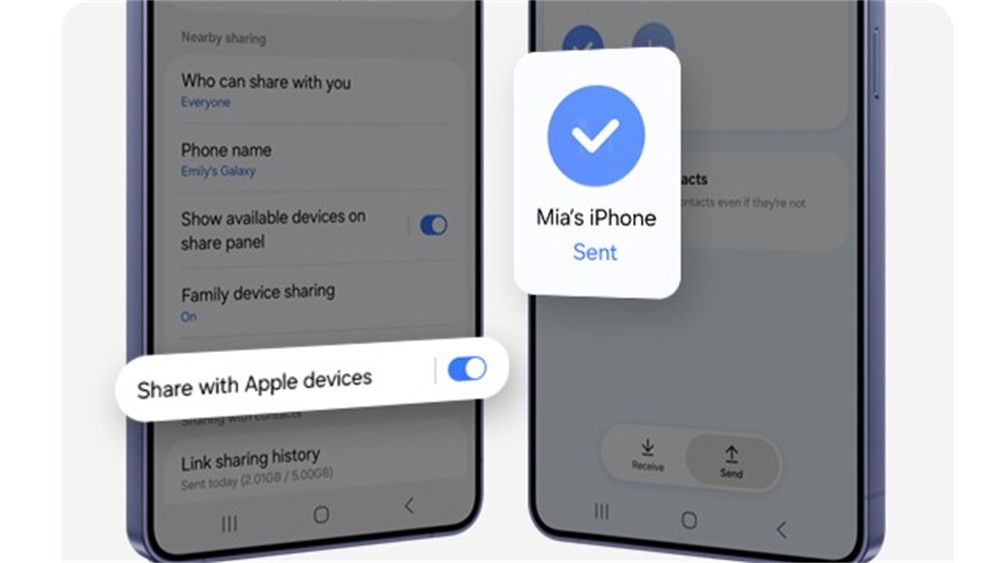
Samsung has made significant upgrades to file sharing to bridge the gap between its ecosystem and other platforms, particularly Apple devices. A major addition is a new “Share with Apple devices” option in the Quick Settings menu, enabling seamless, high-speed transfers to iPhones, iPads, and Macs that use AirDrop.

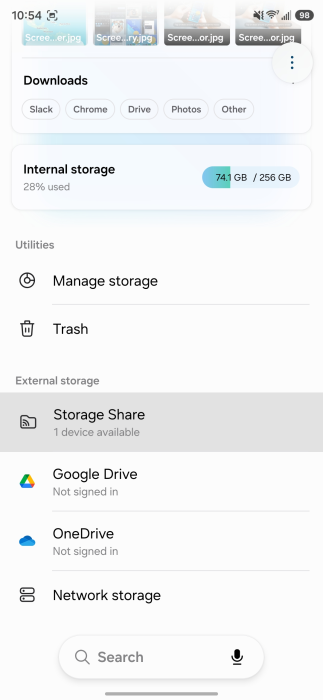
One UI 8.5 also makes it easier to access the storage of one Galaxy device directly from another through the My Files app. For example, you can browse photos, music, and documents stored on your Galaxy Tab directly on your Galaxy phone, provided both devices are signed into the same Samsung account.

We’ll keep sharing with you the latest One UI updates in the Samsung section on this website. You can visit that page regularly to get fresh details. Or, if you prefer news on the go, make sure to follow our Telegram channel.

The post 5 One UI 8.5 features I can’t wait to use appeared first on Gizmochina.
❌